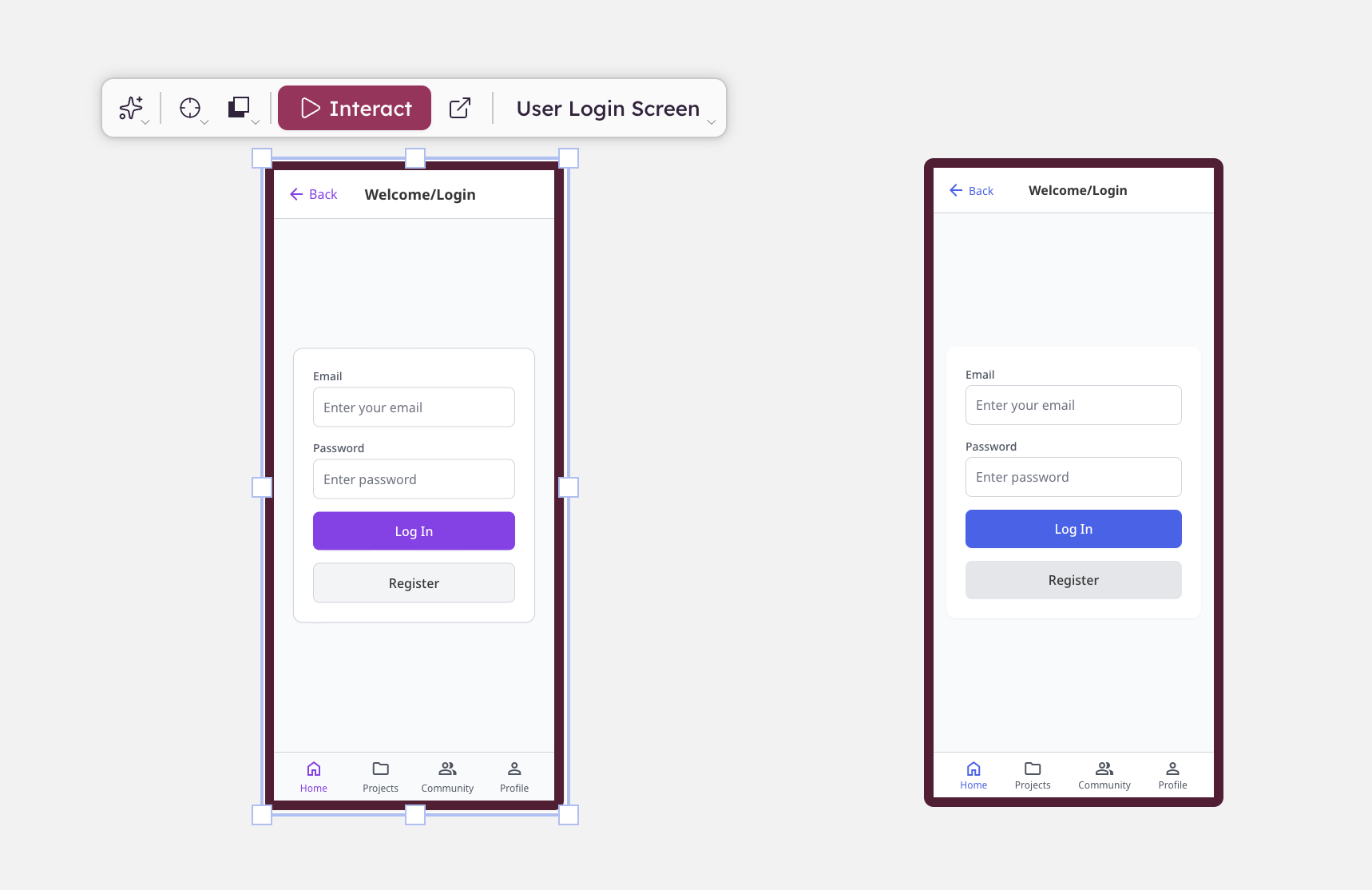
Prototyping with Balsamiq AI
On this page
Generating a prototype
To generate a prototype, select the wireframe elements that make up a screen (not just a background or container), then click Generate prototype in the selection toolbar. The button also appears when you click the sparkle icon ✨ to open the AI menu.
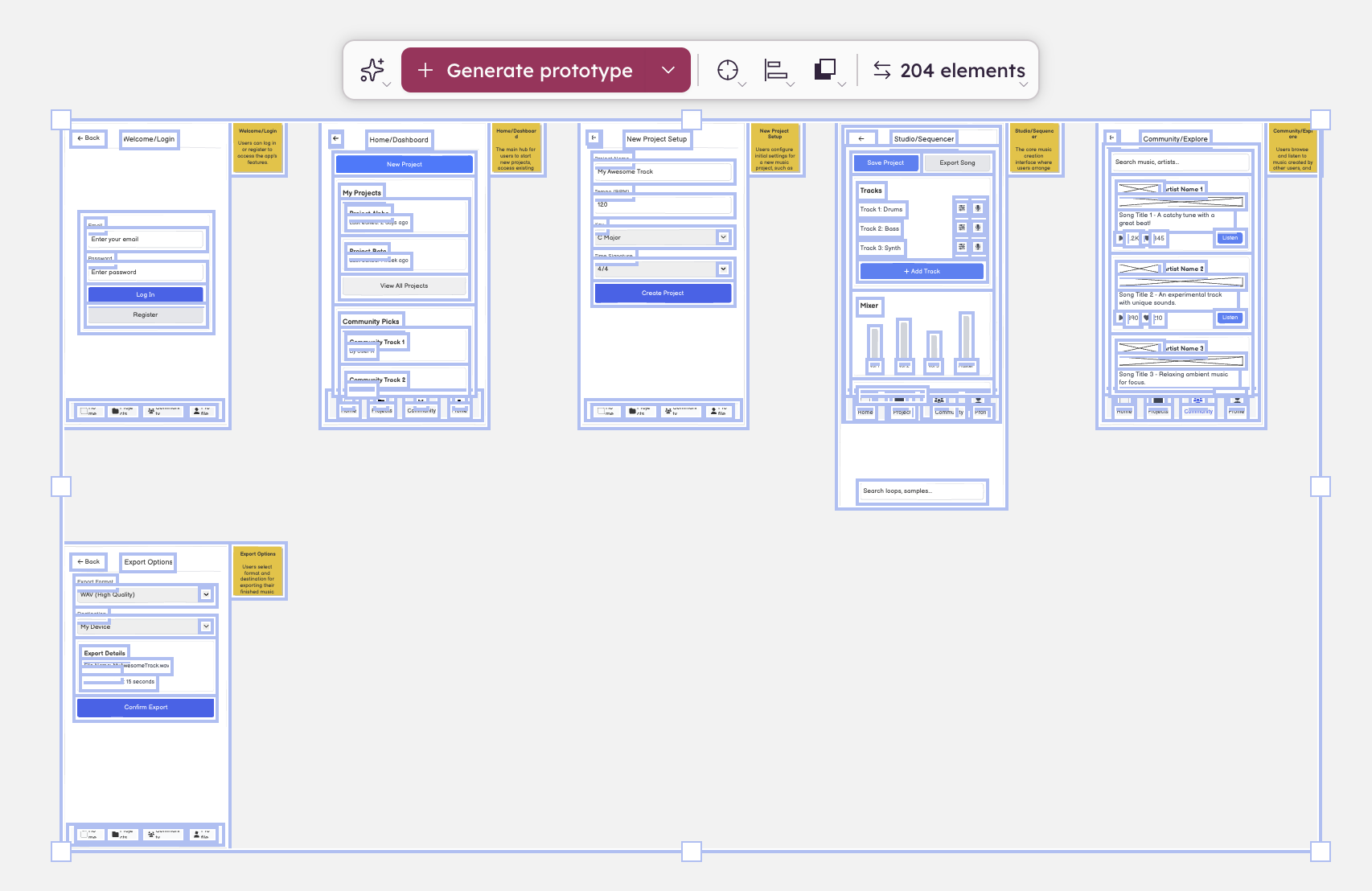
While generating, a placeholder appears on the canvas with a spinner. Generation takes a few seconds.
Note: Balsamiq AI actions use credits from your Space's shared monthly pool. Learn more about AI credits.
Prototype toolbar
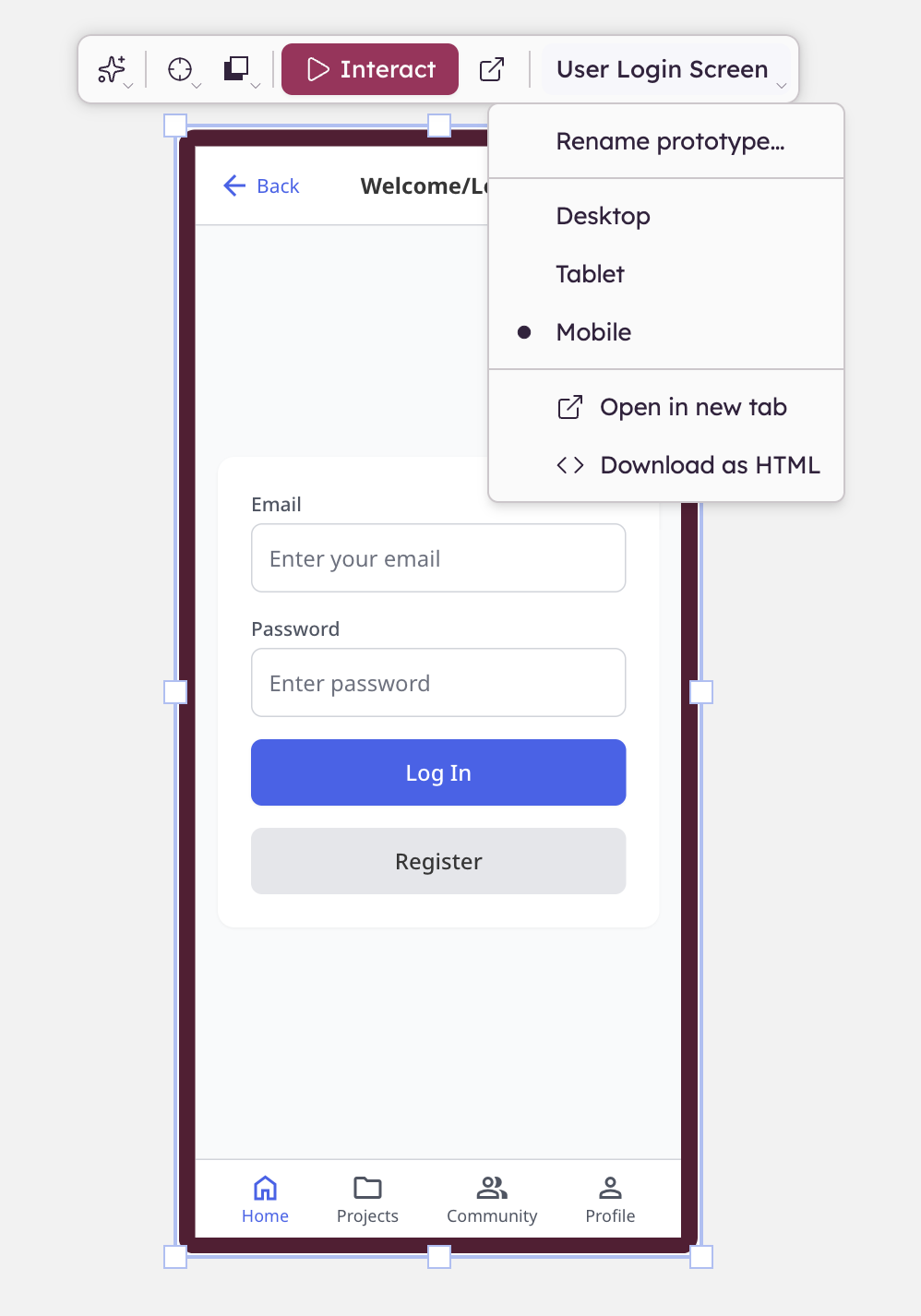
When a prototype is selected on the canvas, a toolbar appears above it with these options:
- Interact — activates the prototype so you can click through it
- Open in new tab — opens the prototype in a browser tab for previewing and sharing
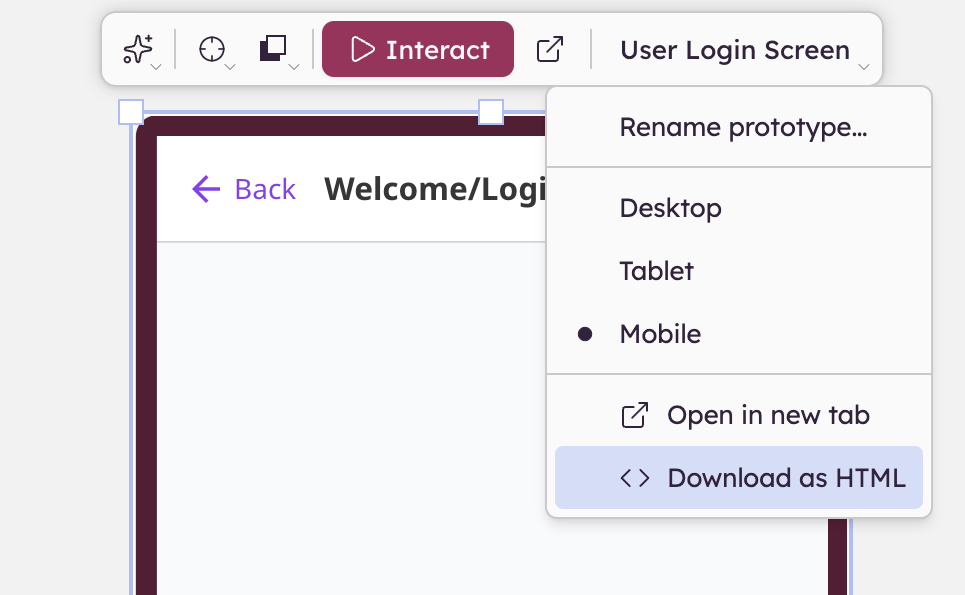
- Prototype name — allows you to rename the prototype, change the device preset, open in a new tab or download the prototype as a standalone HTML file
Open in new tab opens the prototype in a hosted viewer. The viewer includes a top toolbar with device size toggles and an option to open the direct view. Useful for reviewing the prototype outside the editor, or demoing it in a meeting.
Direct view shows the prototype full-screen with no viewer chrome. The URL can be shared directly. This is intended for user testing: share the link with a stakeholder or participant and they see the prototype as if it were a real app, with no Balsamiq UI around it.
Note: Both views are accessible via a shareable URL. No login is required to view them. The URLs contain a long, randomly generated ID that is not guessable, similar to our existing public links.
Interacting with a prototype
Clicking Interact zooms the view to fit the prototype and makes it live.
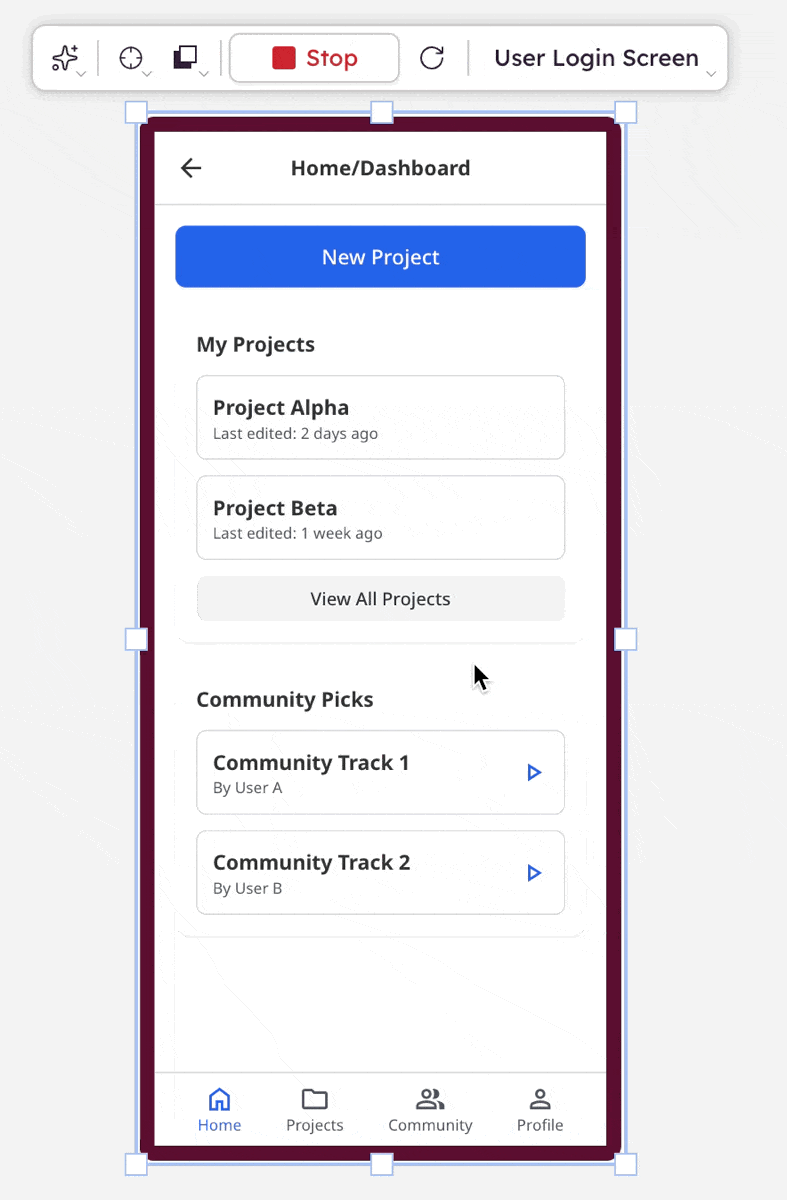
To exit, click Stop or click outside the prototype. Use the refresh button to restart your session.
Note: Only one prototype can be in interactive mode at a time. You can use
Updating a prototype
To update an existing prototype after making changes to the wireframe:
- Select the source wireframe elements on the canvas (not the Prototype control itself).
- Click the dropdown arrow next to Generate prototype.
- Choose Update '[name]' from selection.
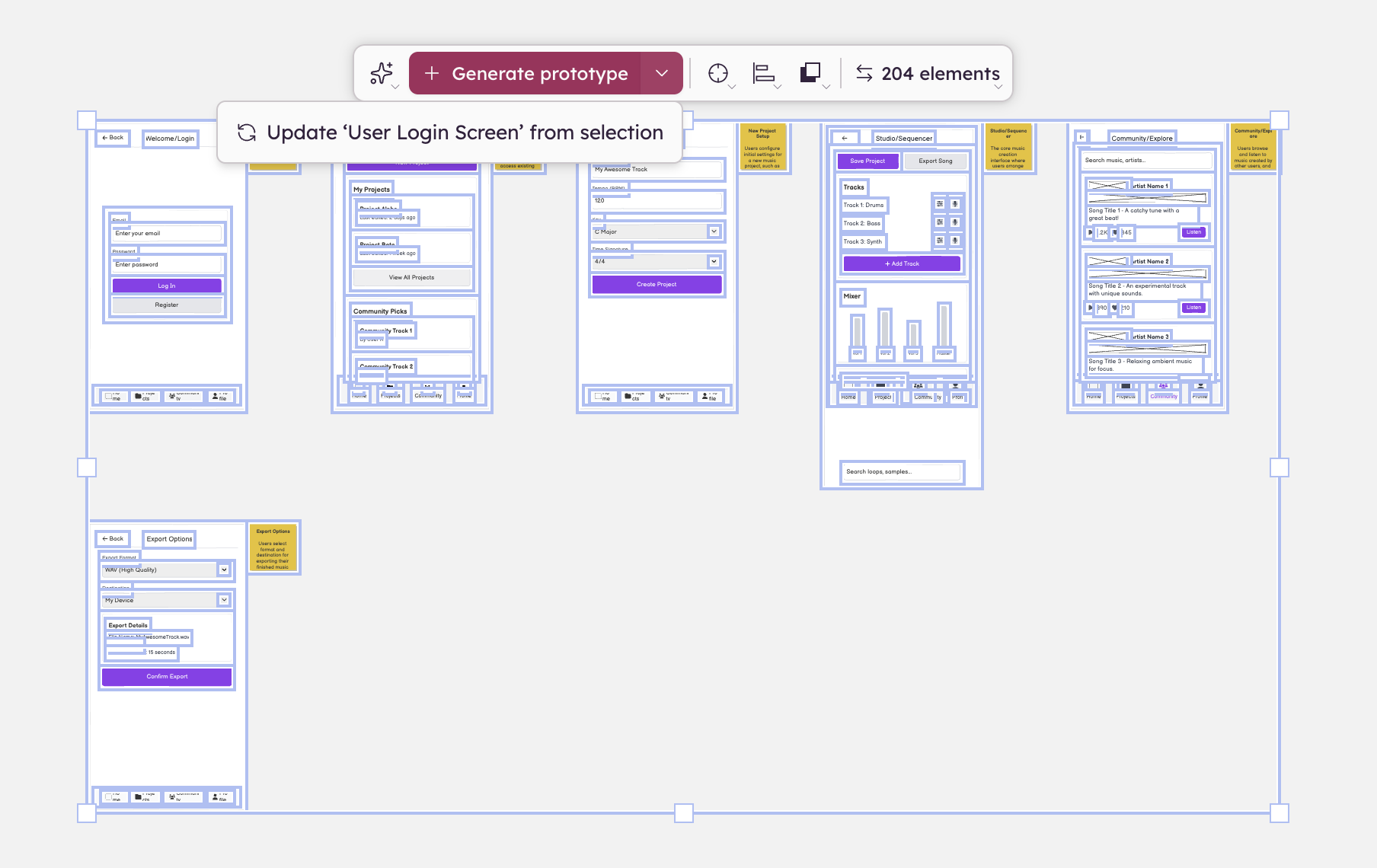
The prototype updates in place. Balsamiq AI decides whether to apply changes incrementally or regenerate from scratch.
Note: Clicking Generate prototype directly (without using the dropdown) always creates a new prototype.
Exporting a prototype
You can download the prototype as a standalone .html file using the dedicated Download as HTML.
Multiple prototypes on one board
A board can hold more than one prototype. Each prototype is independent and can be interacted with, updated, or exported separately. When source wireframes are selected, a dropdown lists all associated prototypes. Only one prototype can be in interactive mode at a time.