The boards panel
On this page
The boards panel on the left displays the list of boards. The currently selected board is highlighted.
You can select multiple boards in the boards panel by holding down CTRL or SHIFT and clicking on them. They can be displayed in text-only form, or with a thumbnail preview.
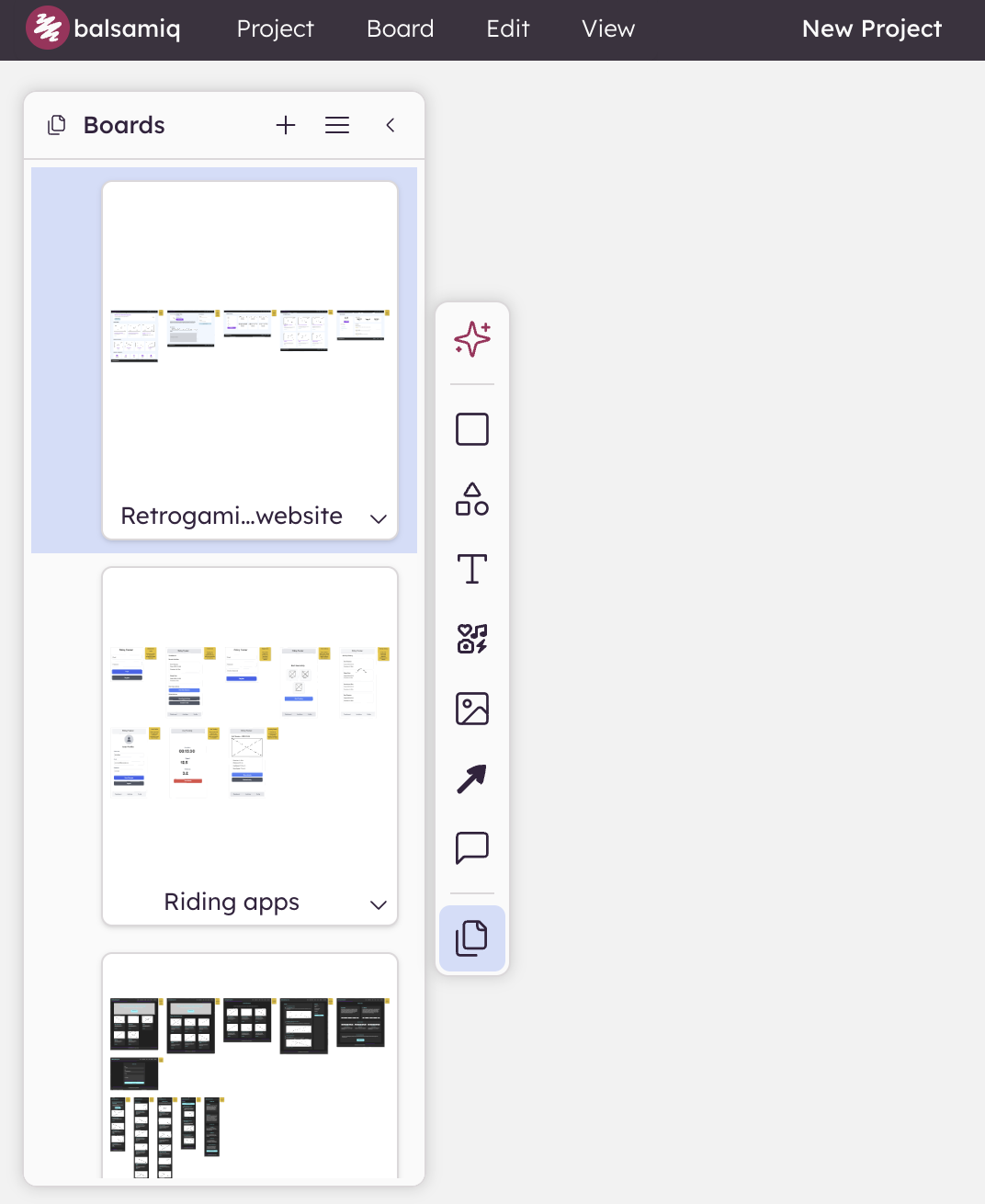
Jumping in-between boards can also be done using your keyboard via CTRL+TAB or by clicking on one in the panel and using ↑ and ↓. You can also hide the boards panel by clicking the panel toggle in the Left Bar (keyboard shortcut: CTRL/⌘+J).
Note: You can toggle the view between a list of board names, and a thumbnail preview of your boards in the upper-right-hand corner of the boards panel.
Boards can be reordered by dragging them up and down in the boards panel. This can be useful when exporting to PDF, for example.
Using a hierarchy
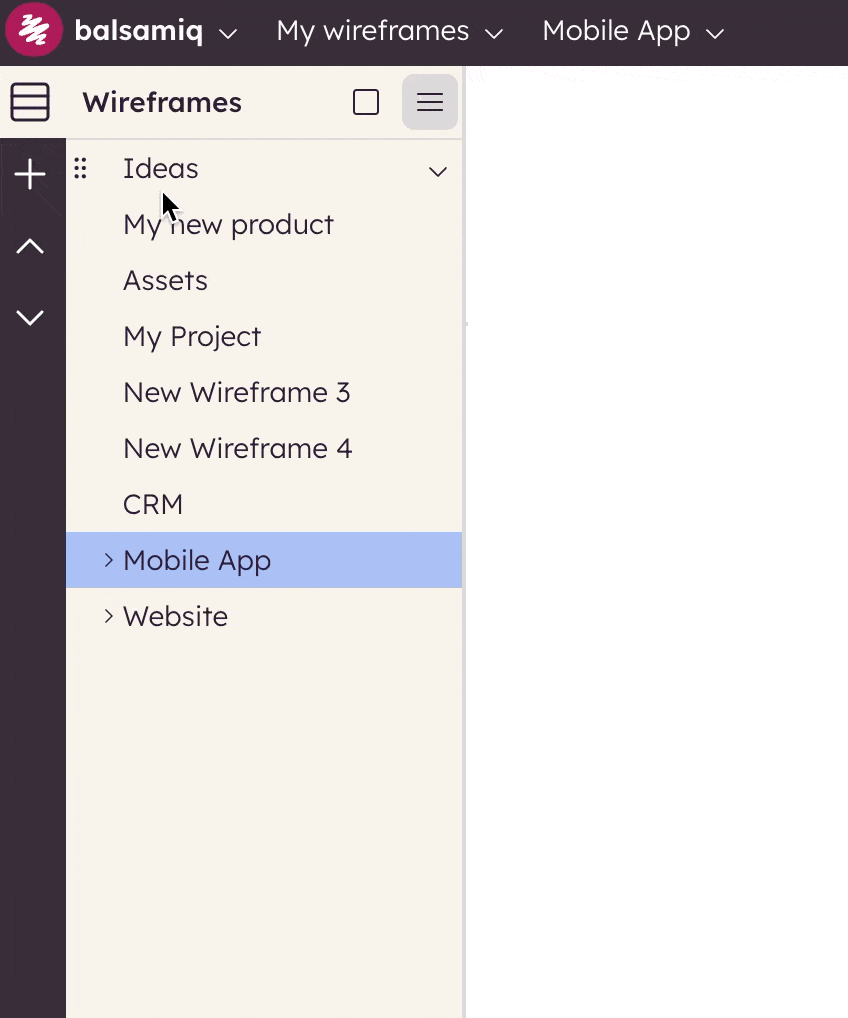
The boards panel also offers a hierarchical structure to better organize your boards.
To use it, select the board you wish to be the child and press TAB. The child board will be placed in a tree hierarchy below the board above it. To restore it to the top level, use SHIFT+TAB.
You can then use the arrows to the left of the parent board to display and hide the boards under it.
Context menu actions
A context menu is also available for the boards that are open in the boards panel. You can either right-click on the selected board, or click the small caret that appears when you hover over it, to open the menu.
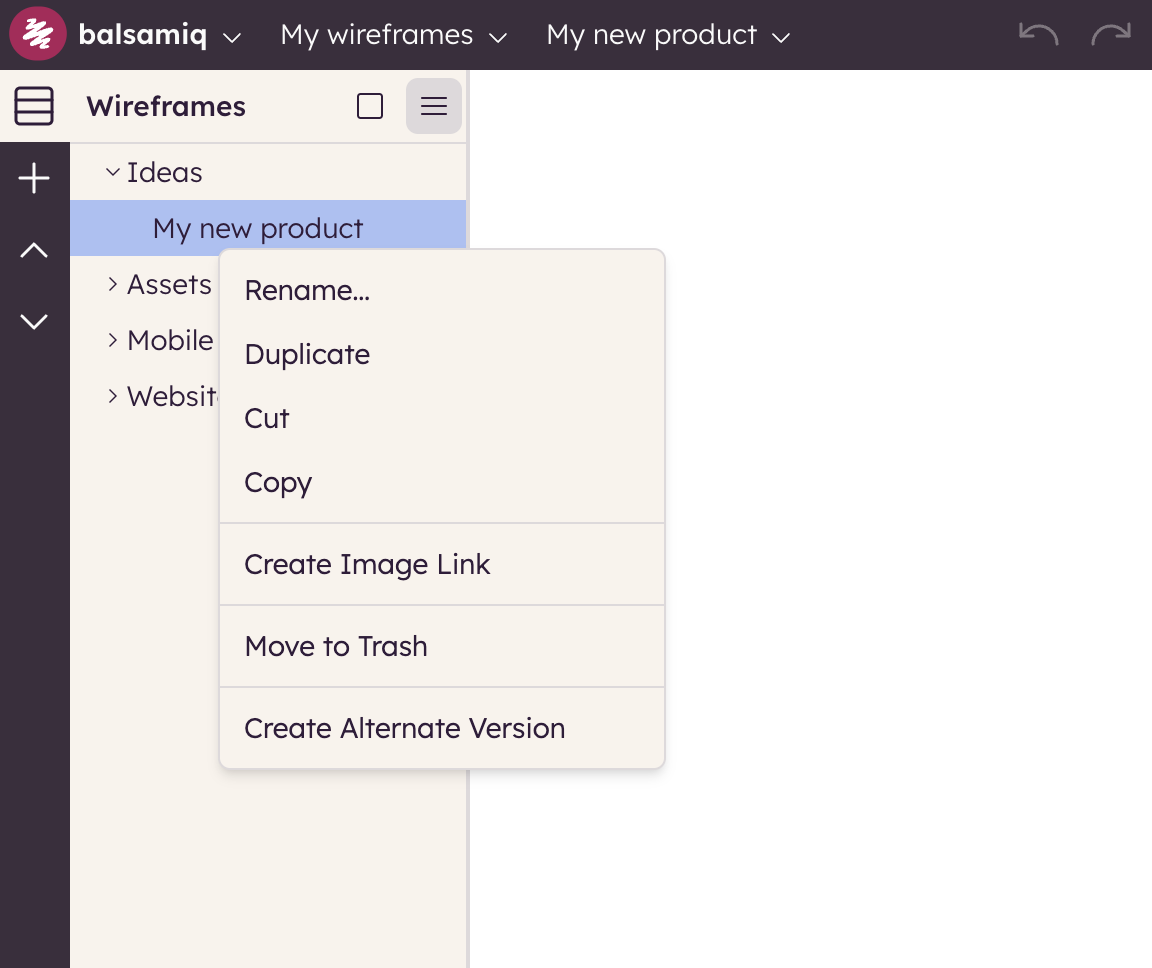
This menu contains options such as rename, duplicate, cut, copy or move to trash. It also contains actions for working with alternates.
Note: You can select multiple boards (using SHIFT+Click) and copy/paste/cut (or duplicate) them all at once.
Renaming boards
Renaming boards can be done via the context menu or by double-clicking on the name of the board in the boards panel. Boards with links will automatically be updated when a linked board name changes.