Managing seats
On this page
Balsamiq Cloud uses per-editor pricing: every person who can edit projects consumes one paid editor seat. Reviewers are free and don't use a seat.
The following roles consume an editor seat:
Staff reviewers, Guest reviewers, and Billing Admins are free. For a full breakdown of roles and what they can do, see People and permissions.
Viewing your seat count
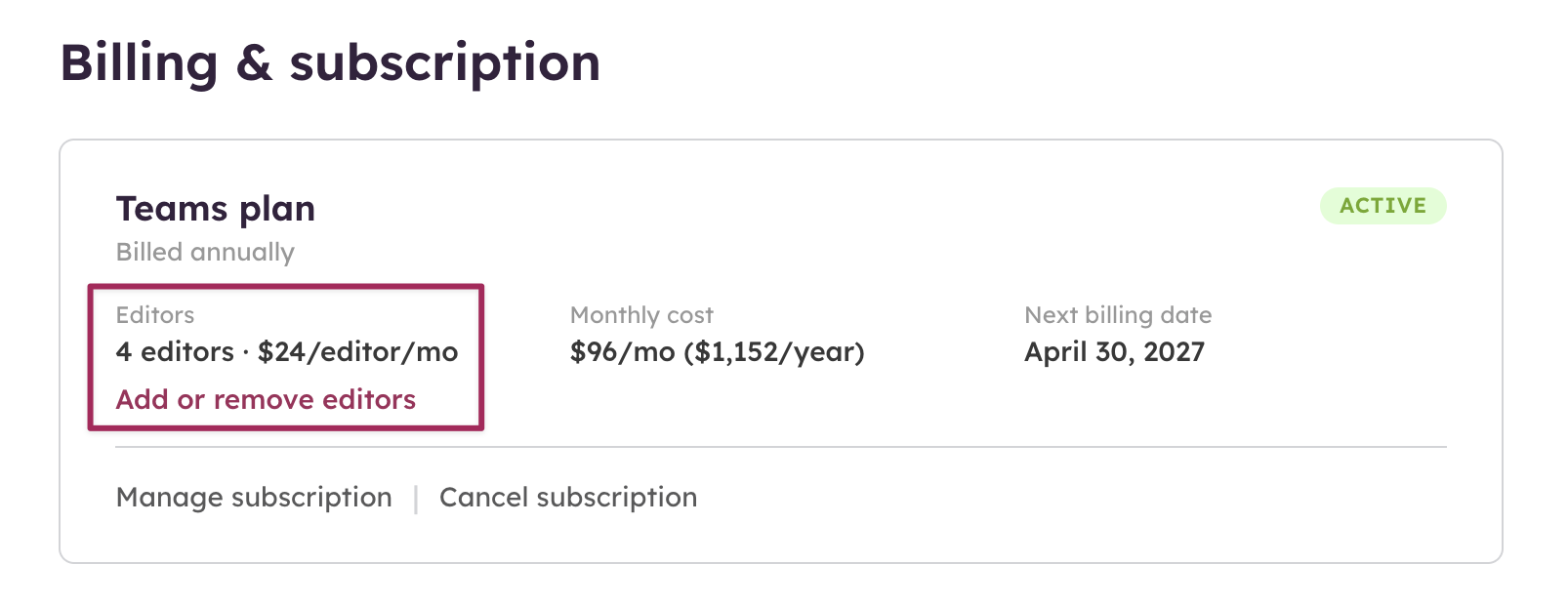
Space owners and Billing Admins can see the current seat usage at any time on the billing page and in Space Settings → People tab.
The seat counter shows how many seats are included in your plan, how many are in use, how many are available, and how many invitations are pending.
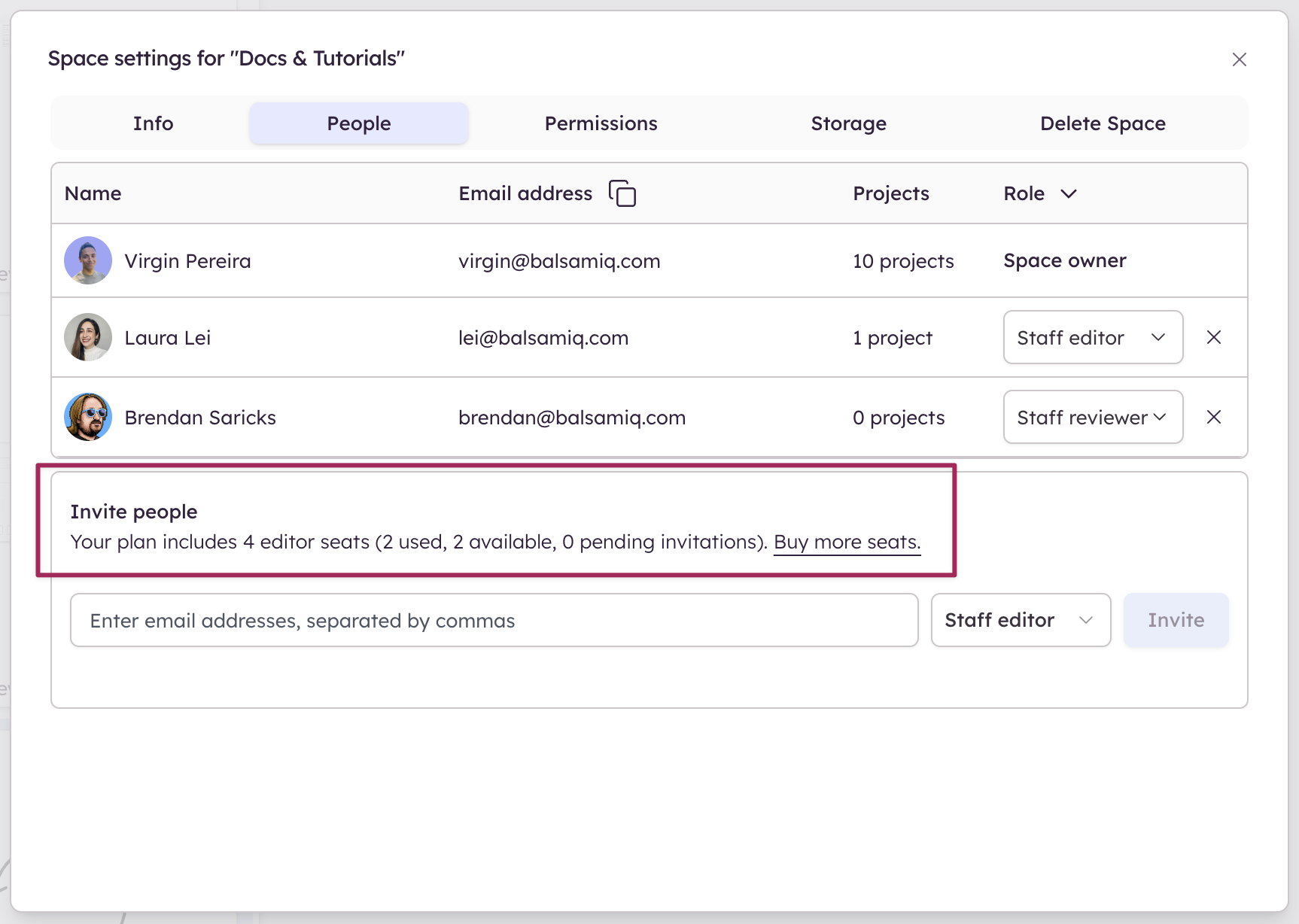
Note: Pending invitations count toward your used seat total immediately.
Adding or removing editor seats
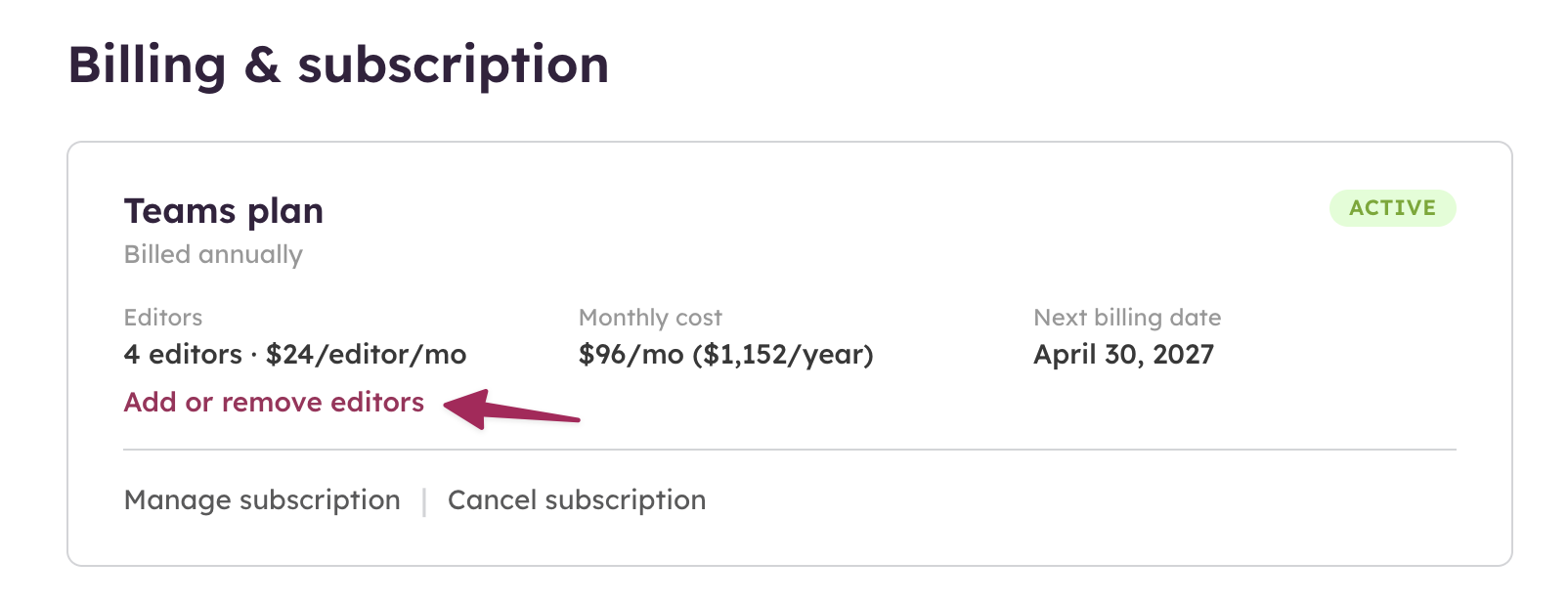
To change your editor seat count, go to your billing page and click Add or remove editors.
Use the +/− buttons or type a number to set the new total. An invoice preview shows the prorated cost before you commit.
Adding seats:
- You are charged immediately for the new seats.
- AI credits for the added seats are applied to your balance right away.
Removing seats:
- The reduced allocation takes effect at the next billing cycle — no refund is issued and existing credits are not removed.
- You cannot go below the number of editors currently assigned plus any pending invitations. To reduce your seat count further, remove members first.
Note: Changing your seat count does not reset your billing date. Only switching between monthly and annual billing resets the cycle. If auto-renew is off, committing a seat change re-enables it automatically.
Assigning and removing editor seats
Assigning a seat to an existing member
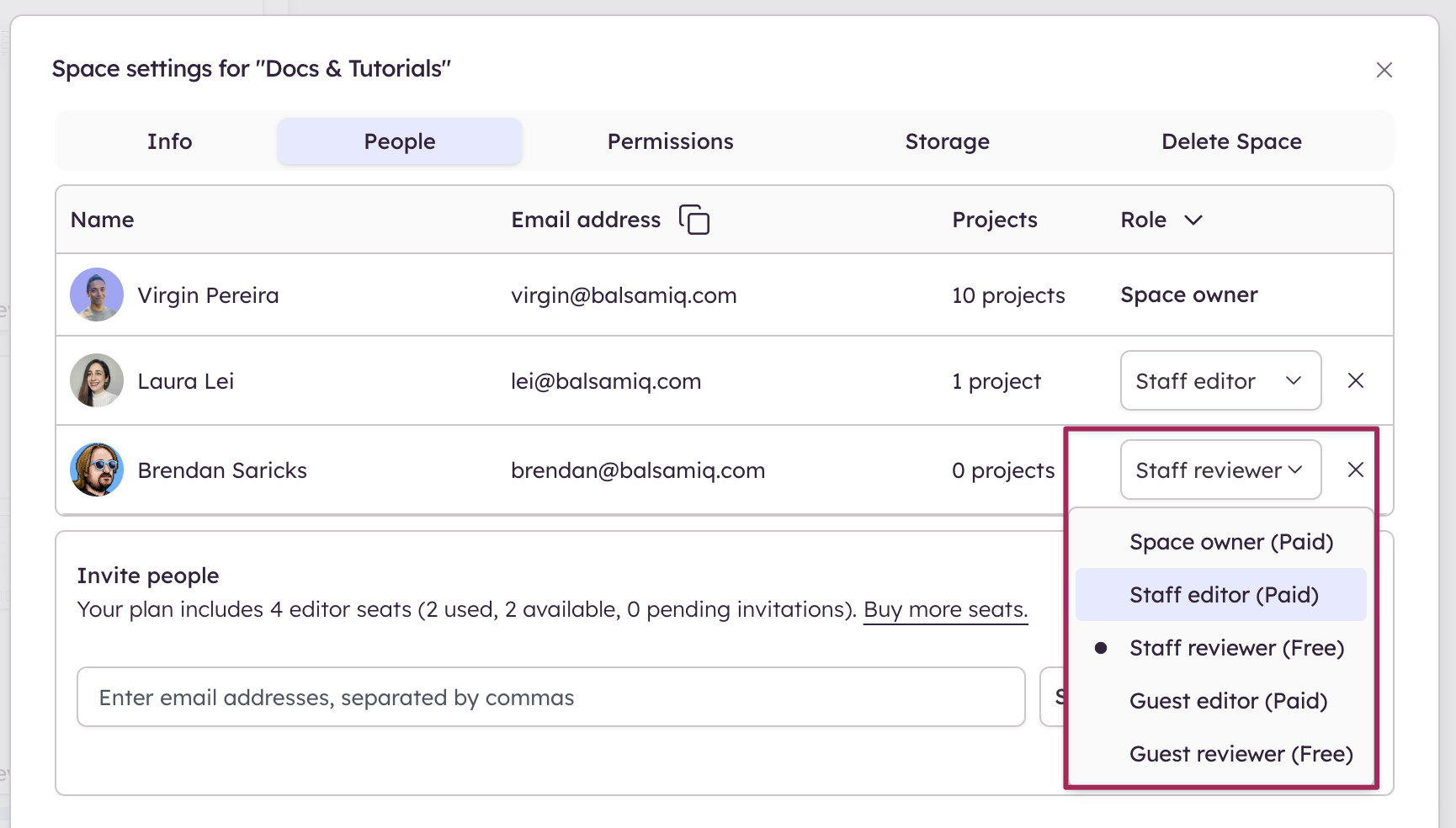
If someone on your Space is currently a reviewer and you want to give them editing access, you can assign them a seat in two places:
From Space settings:
- Go to Space Settings → People tab.
- Find the member and change their role to an editor role using the dropdown.
From the project sharing dialog:
- Open a project and click Share.
- Find the reviewer in the members list and select Assign editor seat from the dropdown next to their name.
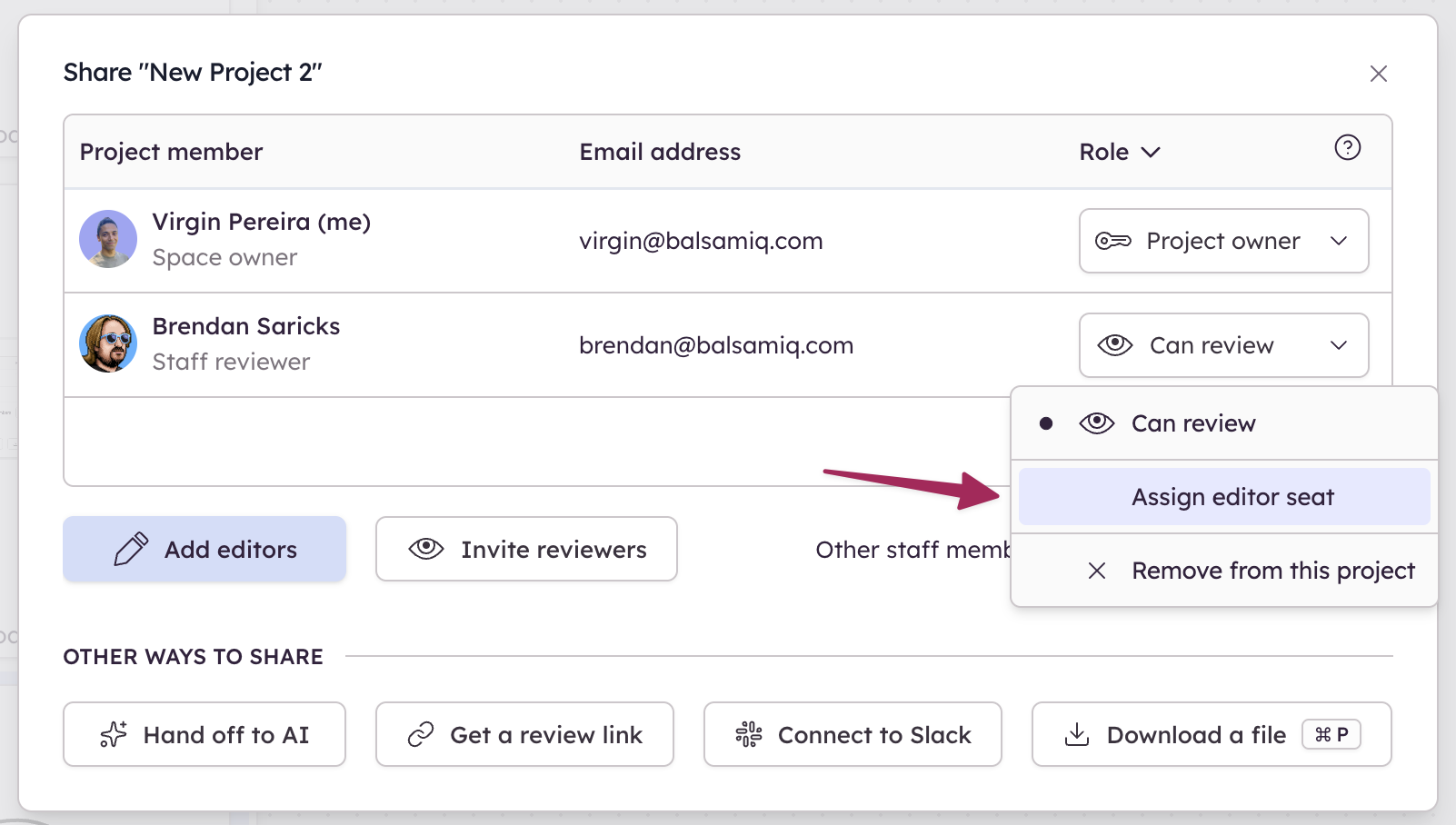
If no seats are available, the option reads Assign editor seat (Buy more editor seats) and is disabled until you purchase more seats.
Removing a member from your Space
To free up an editor seat, you can remove a member from your Space entirely from the People tab in Space Settings. Removed members lose access to all projects on the Space.
Inviting new editors
To invite new people to your Space as editors:
- Go to Space Settings → People tab.
- Under Invite people, enter one or more email addresses, separated by commas.
- For each address, choose their role: Staff editor or Guest editor.
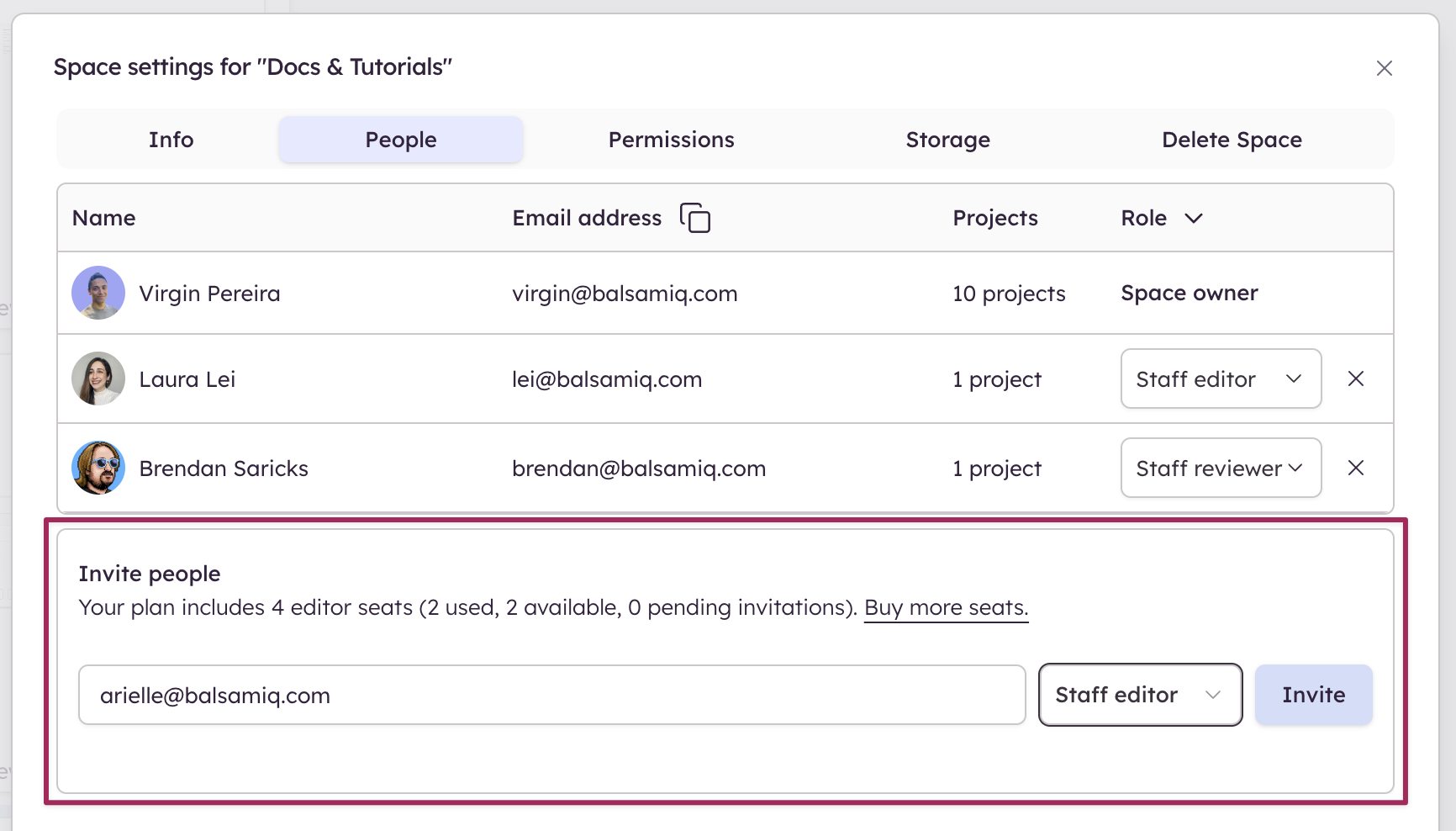
If no seats are available, the paid role options are disabled — you'll need to add more editor seats first. Reviewer roles are always available and free.
Note: Invitations expire after 7 days.
Requesting an editor seat
Reviewers can request an editor seat without waiting for a Space owner to initiate the process.
To request a seat, click Request edit permission in the top bar while viewing a project. The button changes to Editor seat requested once submitted, and the Space owner receives an email notification.
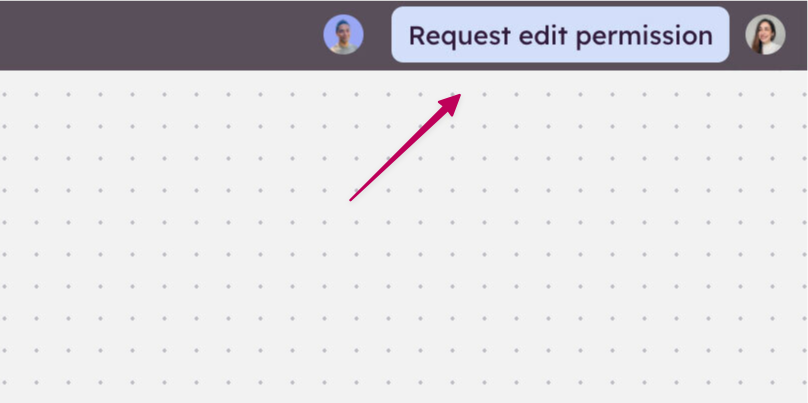
Note: Seat requests expire after 7 days.
Managing editor seat requests
When a reviewer requests an editor seat, a pending request appears in the People tab in Space Settings.
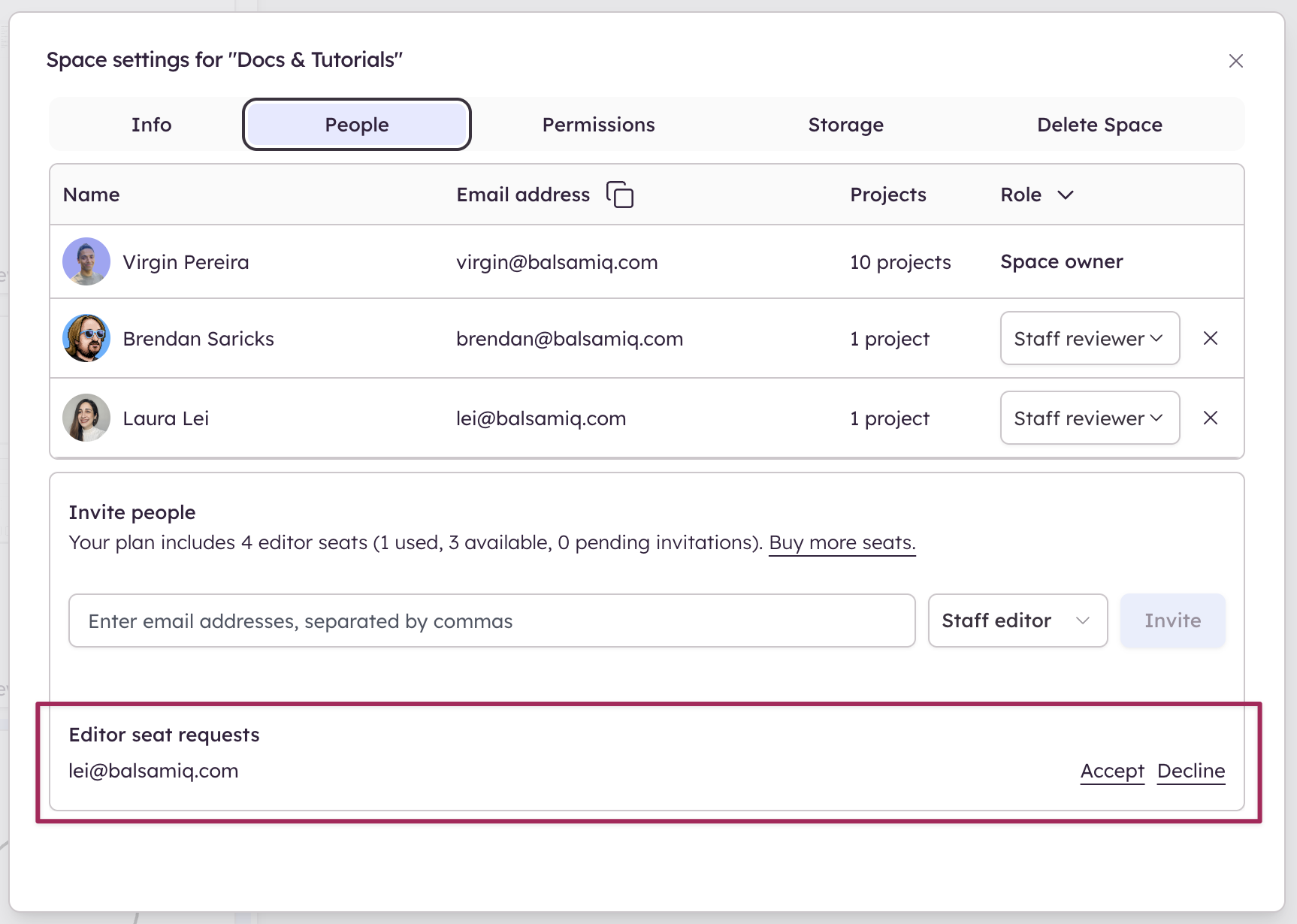
To accept a request, click Accept next to the reviewer's name. If no seats are available, you'll see a prompt to buy more seats before you can approve.
Note: Accepting a request for someone already in the Space promotes them in-app. Accepting a request for a new user sends them an invitation email.