Wireframes
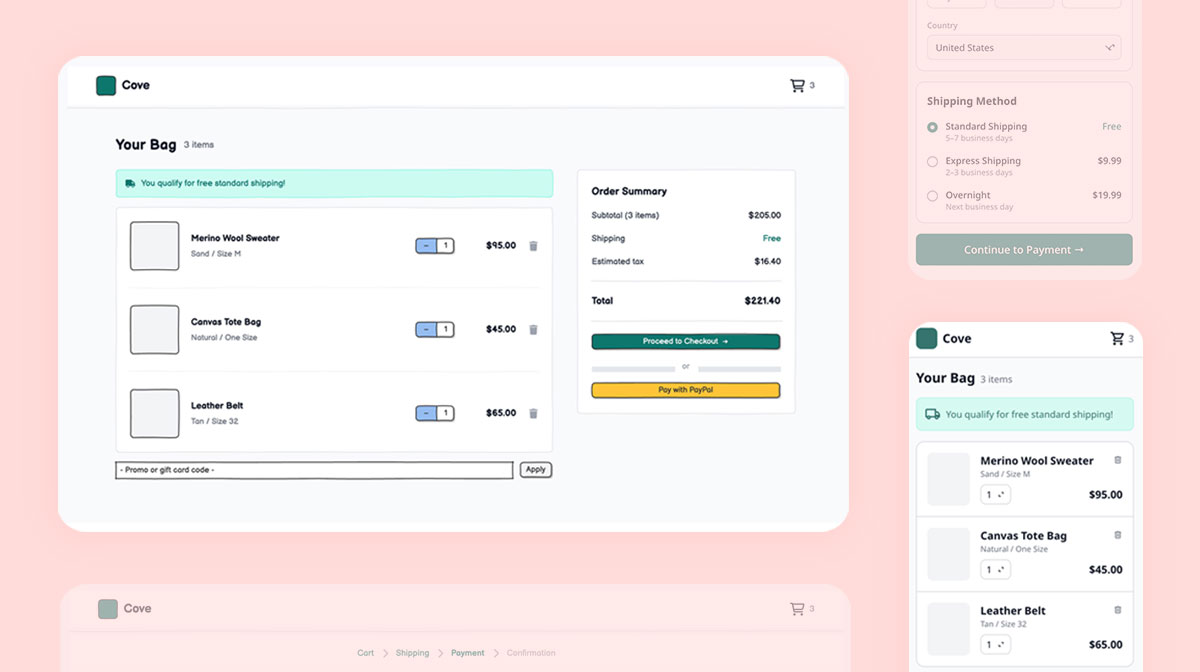
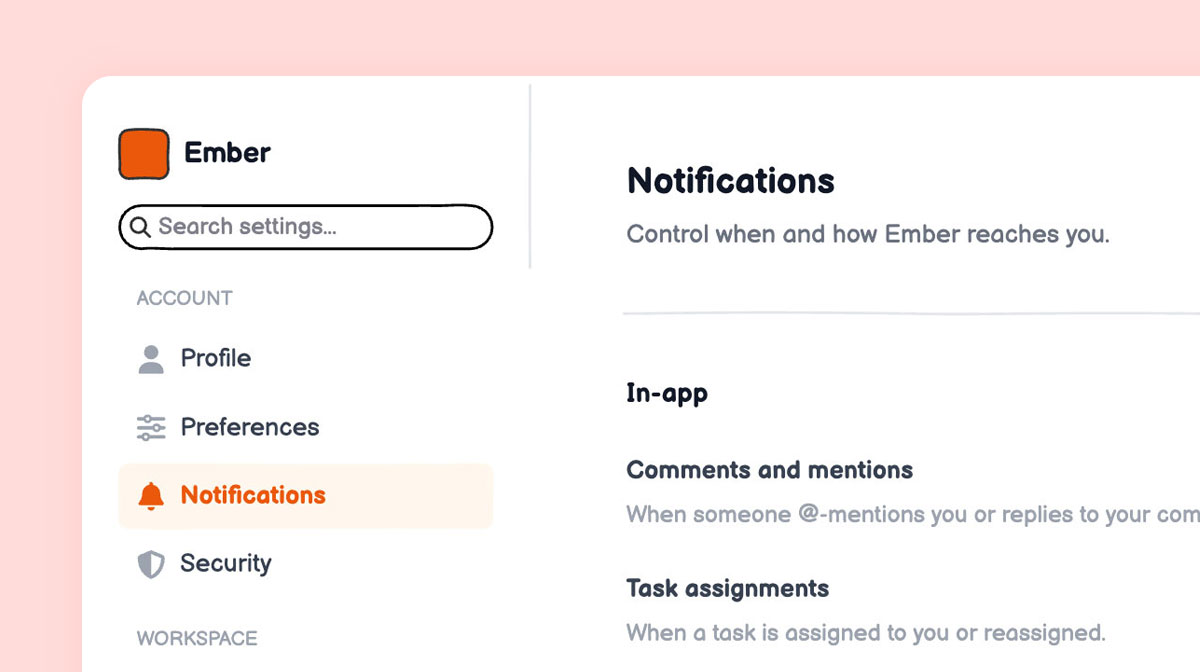
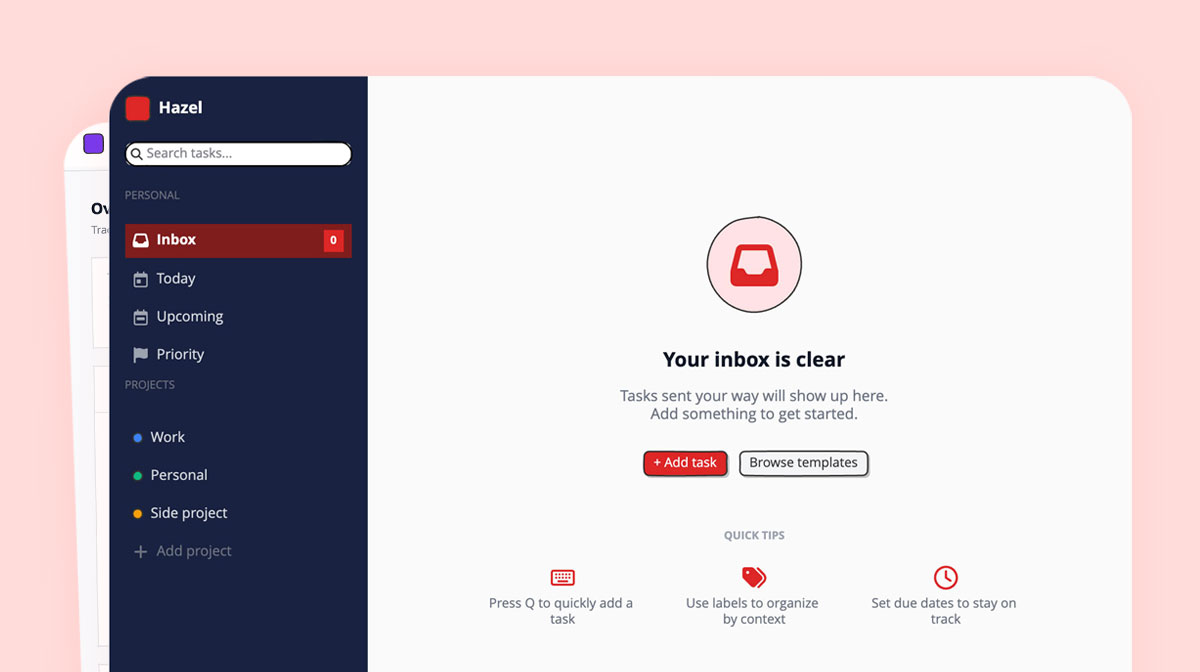
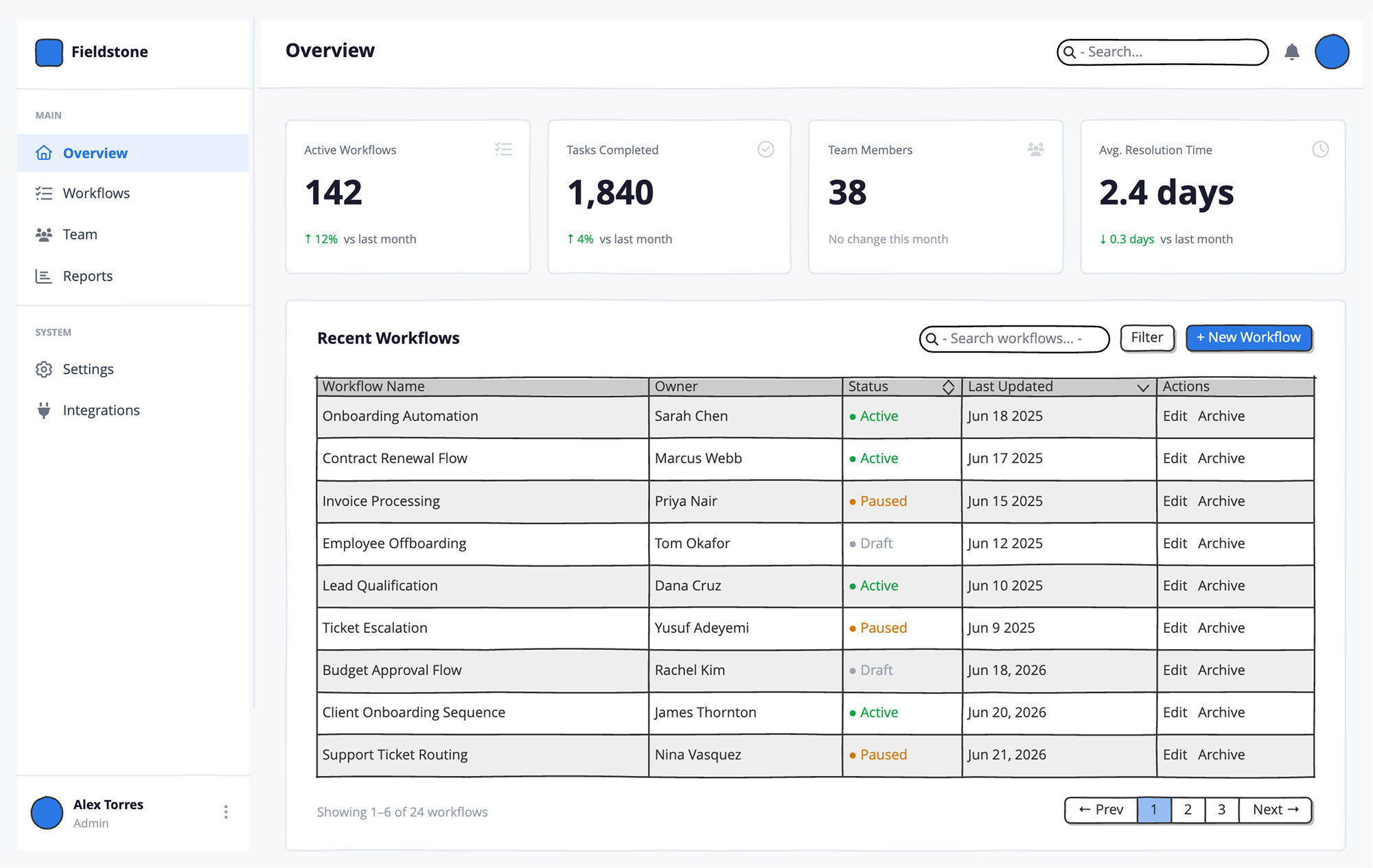
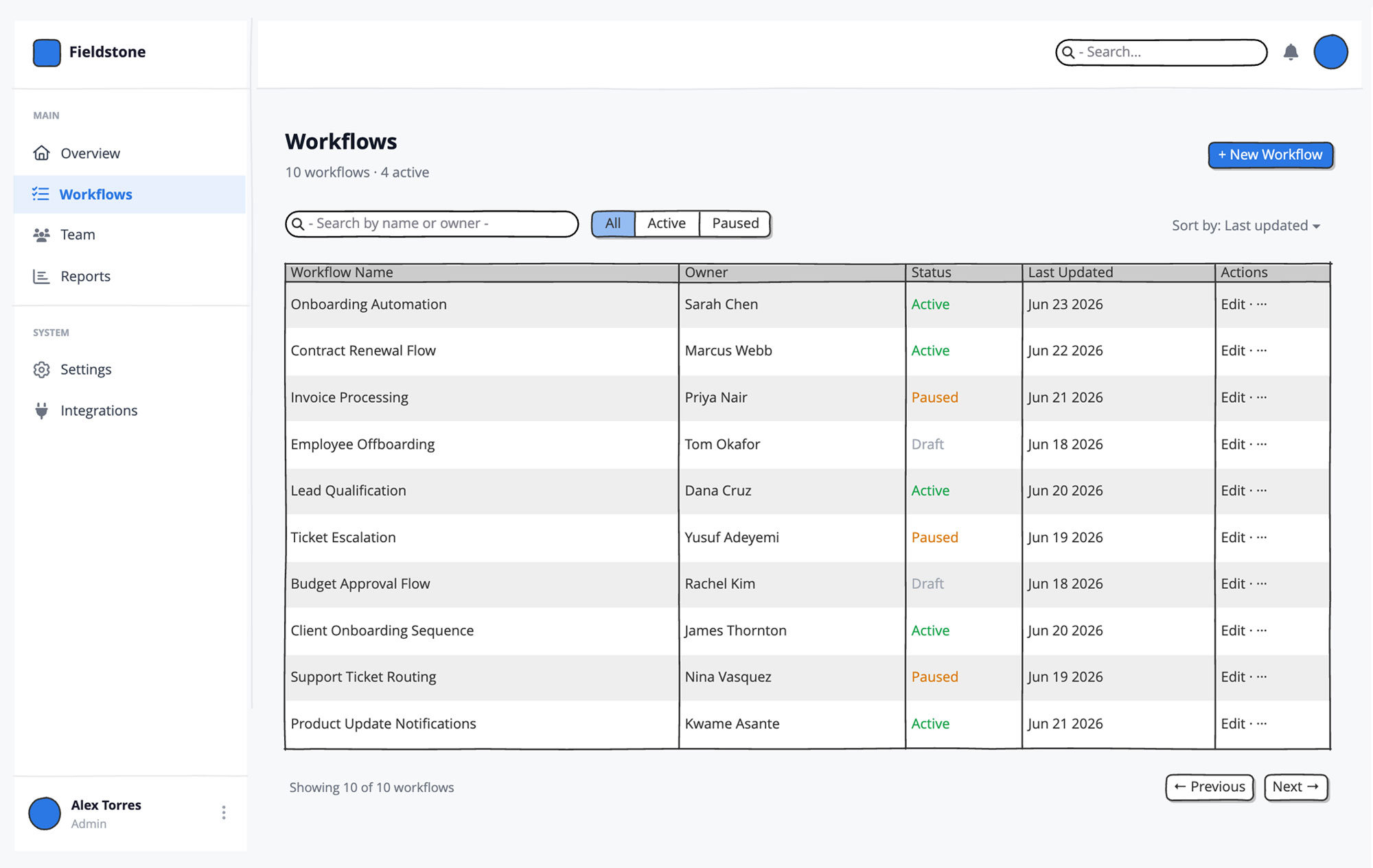
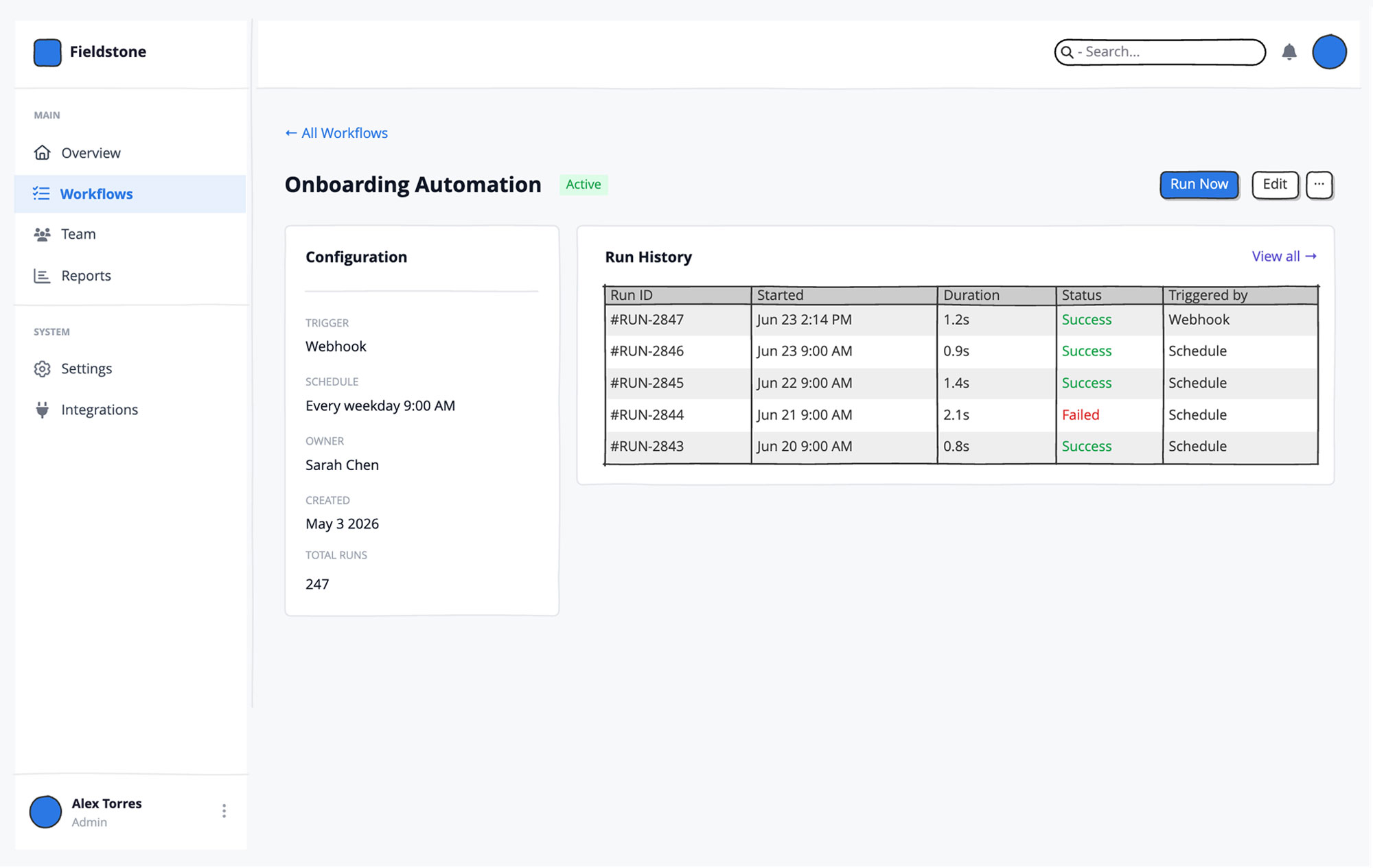
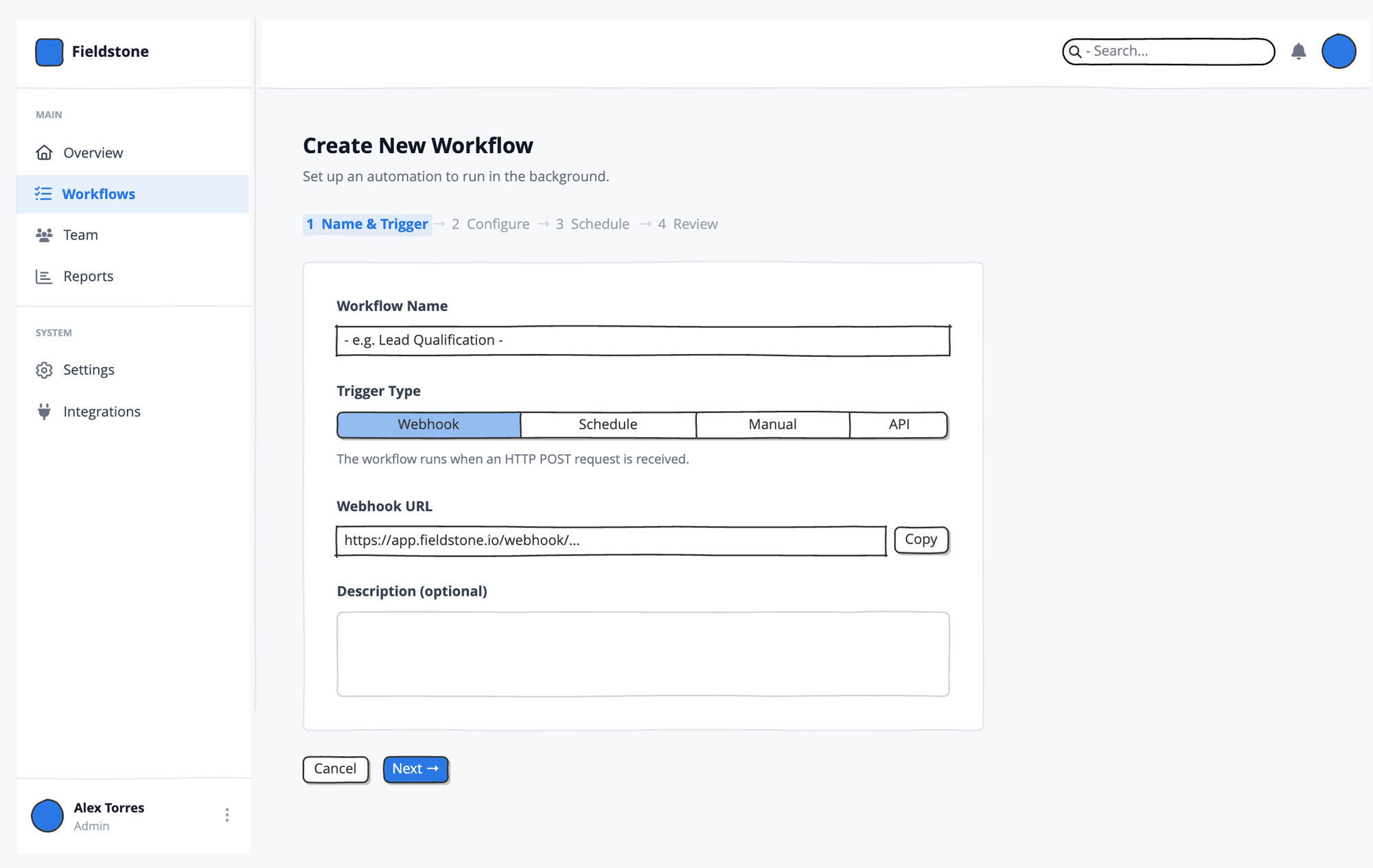
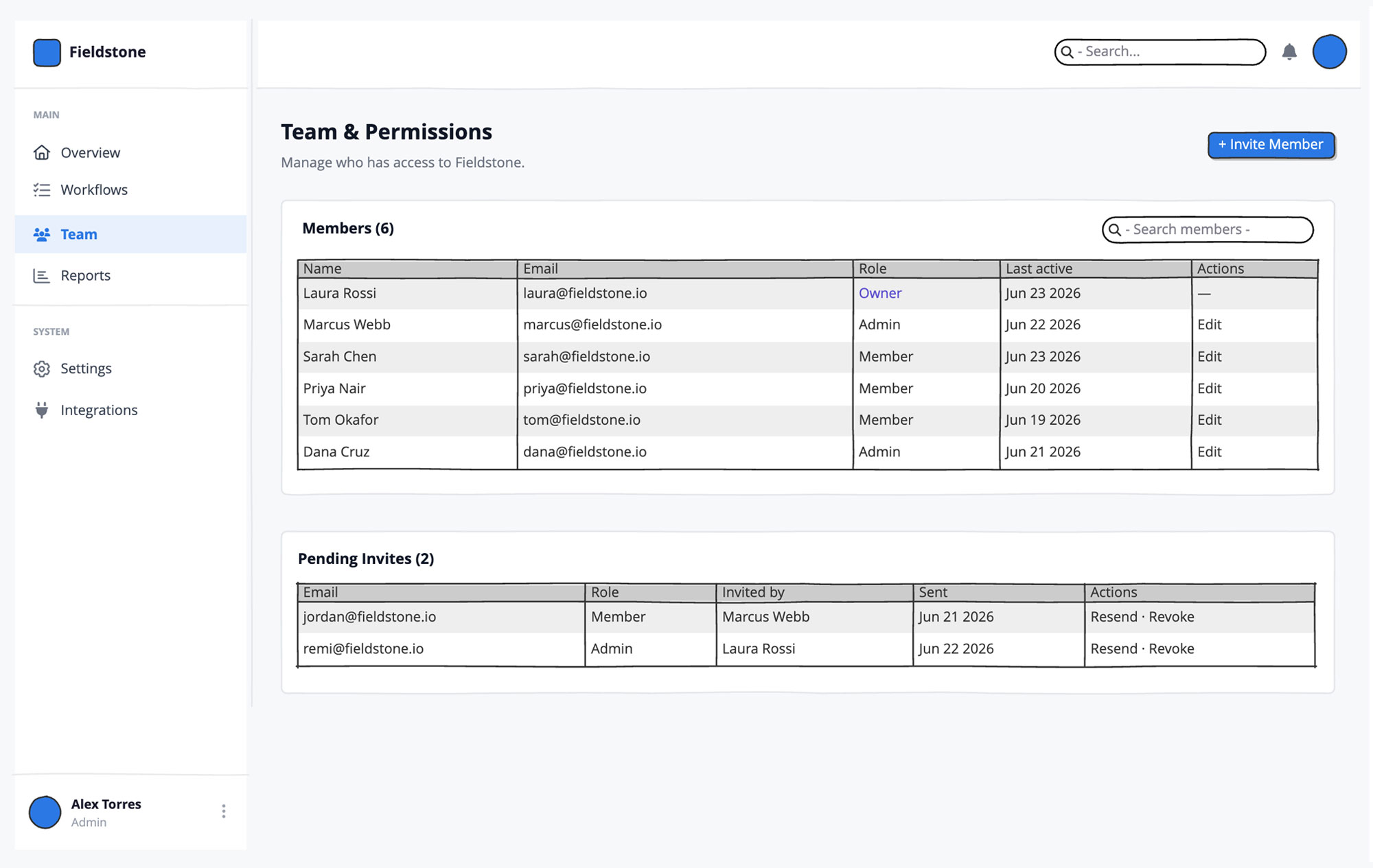
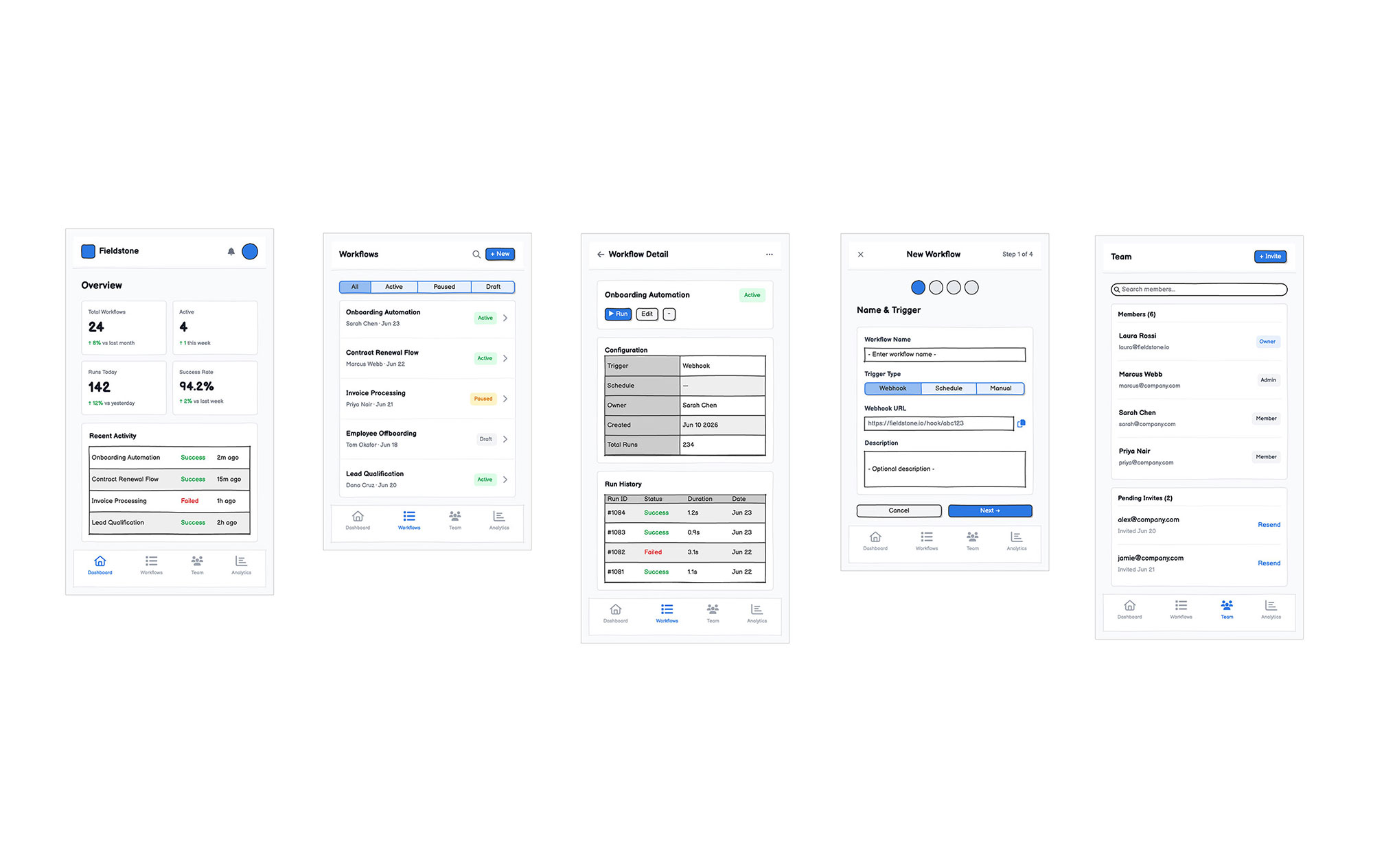
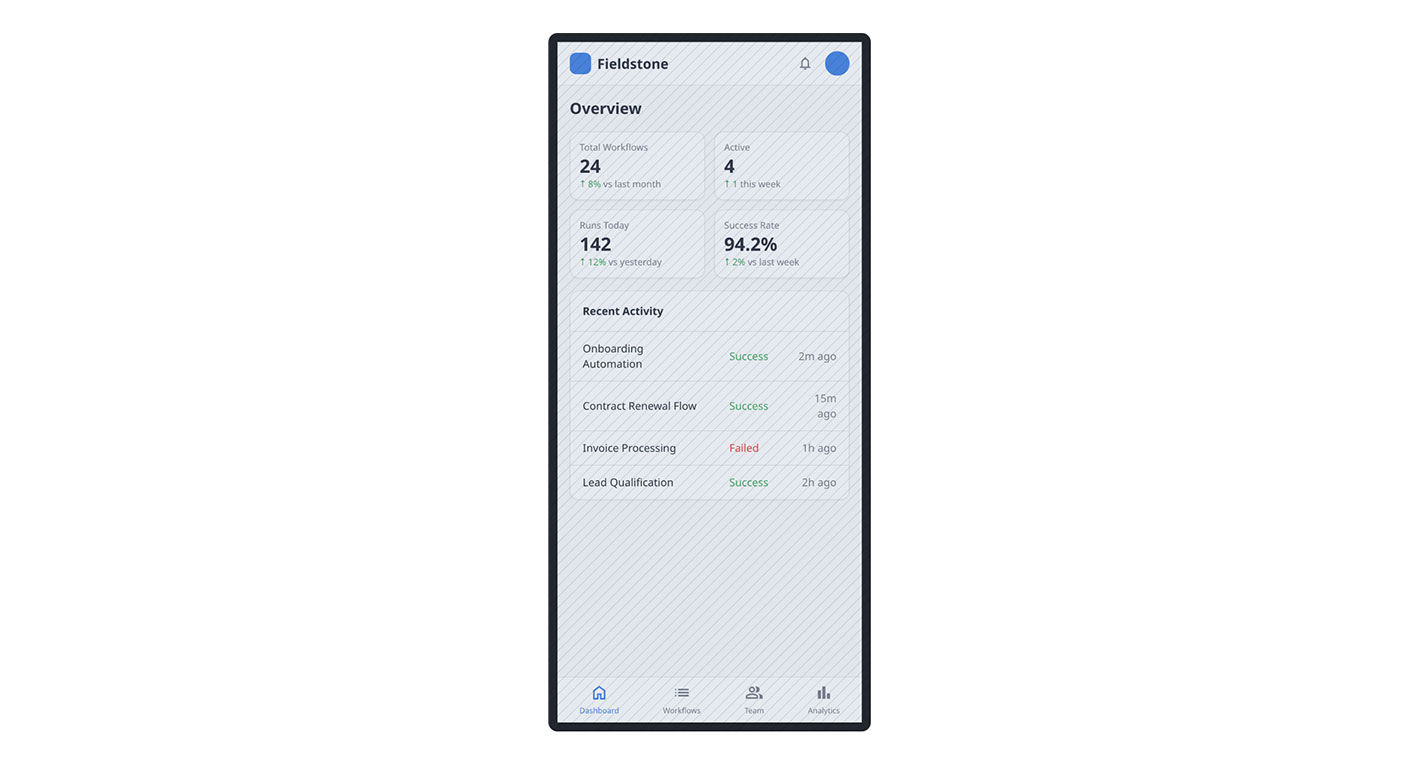
These five screens map out the core views of the application, including the main dashboard overview, the workflows list, a detailed workflow view, a multi-step creation wizard, and team permissions. It also includes a mobile-responsive layout.
The fast way
Recreate this in Balsamiq AI
Paste this prompt into Balsamiq AI to generate a similar flow, then edit any line to make it yours.
Swap the brand name, change the colors, add or remove steps and fields.
Prompt for Balsamiq AI
Prompt generates AI designs. Results may vary.
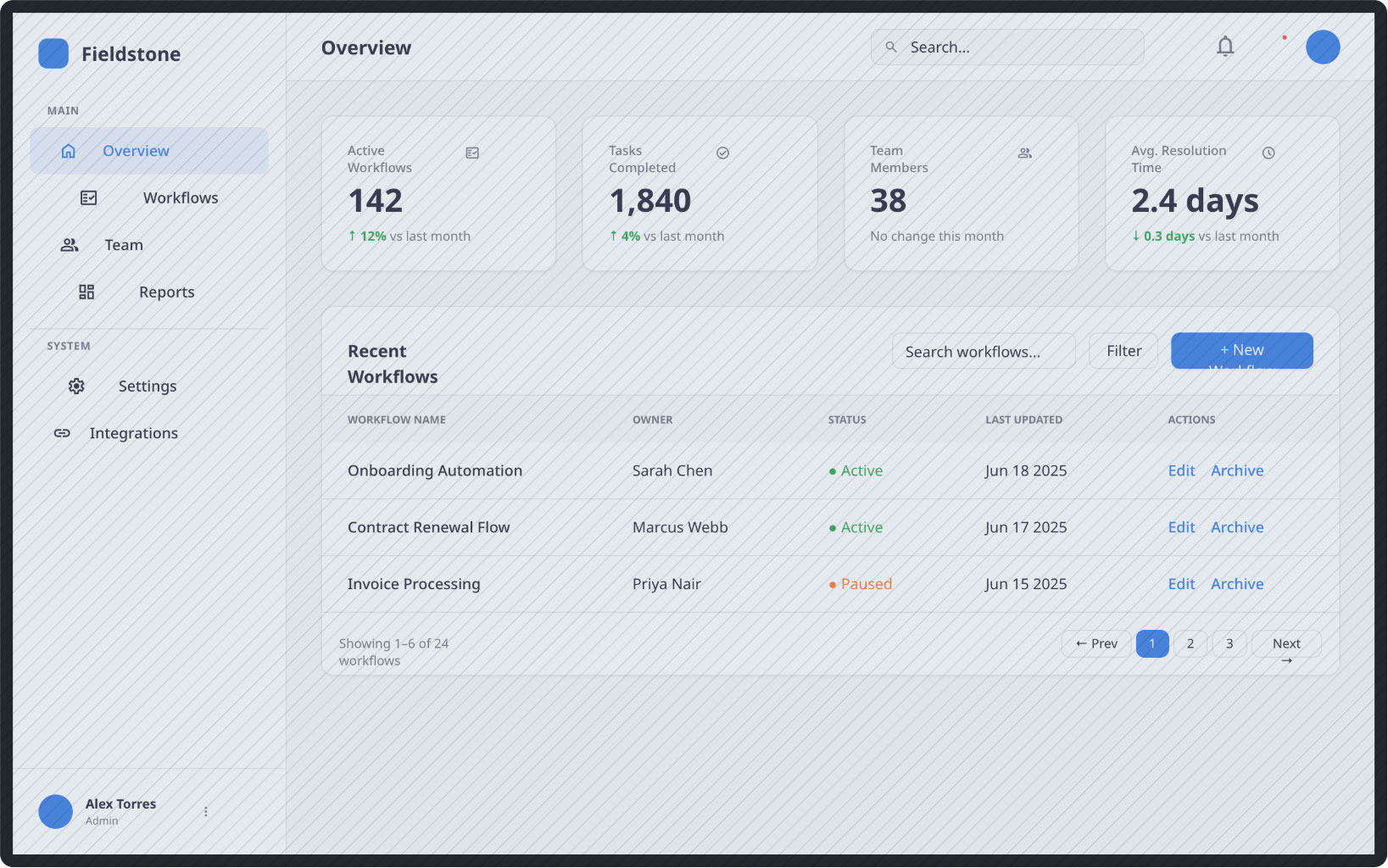
Create a multi-screen wireframe project for "Fieldstone" — a SaaS workflow automation tool. Use a consistent sidebar + main content layout across all screens. The sidebar (220px wide, white background) contains the Fieldstone logo at the top, five navigation items (Dashboard, Workflows, Analytics, Team, Settings), a spacer, and a footer with a user avatar showing "Alex Torres / Admin". The main content area has a top header bar (white, 60px tall) with a search box on the left and a notification bell and avatar on the right. The page background is light gray (#F9FAFB).

Create the following 5 screens:

1. Dashboard — Overview with 4 KPI cards (Total Workflows, Active, Runs Today, Success Rate), a Recent Activity feed, and a Quick Actions panel.

2. All Workflows — Page title "Workflows" with a count subtitle. A toolbar with a search field, status filter tabs (All, Active, Paused, Draft), and a sort dropdown. A data table listing 10 workflows with columns: Workflow Name, Owner, Status, Last Updated, Actions. Status values are color-coded: Active in green, Paused in amber, Draft in gray. Pagination at the bottom.

3. Workflow Detail — Back link at the top, workflow name with an Active status badge and action buttons (Run, Edit, Duplicate, Archive). A configuration card showing Trigger, Schedule, Owner, Created date, and Total Runs. Below that, a run history table with columns: Run ID, Started, Duration, Status, Triggered By. Status cells use green for Success and red for Failed.

4. New Workflow — A 4-step wizard progress indicator at the top (Step 1: Name & Trigger is active, others are inactive). A form card with: Workflow Name text field, Trigger Type button-bar (Webhook selected by default, also Schedule and Manual options), a Webhook URL read-only field with a Copy button, and a Description textarea. Cancel and Next buttons at the bottom right.

5. Team & Permissions — A search field and Invite Member button at the top. A members table with columns: Name, Email, Role, Joined, Actions. Roles are Owner (highlighted in purple), Admin, and Member. Below the table, a Pending Invites section with 2 rows showing email addresses and a Resend link.

Use a blue brand color (#2b78e4) for the active nav item background, primary buttons, badges, and accents. Keep the wireframe style clean and low-fidelity with realistic placeholder content throughout.
Try editing it: change "Fieldstone" to your product name, or swap #2b78e4 for your brand color — then regenerate.
Open Balsamiq AI