The selection toolbar
On this page
The selection toolbar is a floating toolbar that appears directly above a selected element. It allows you to set properties for the selected UI element, such as alignment, text properties, color, etc.
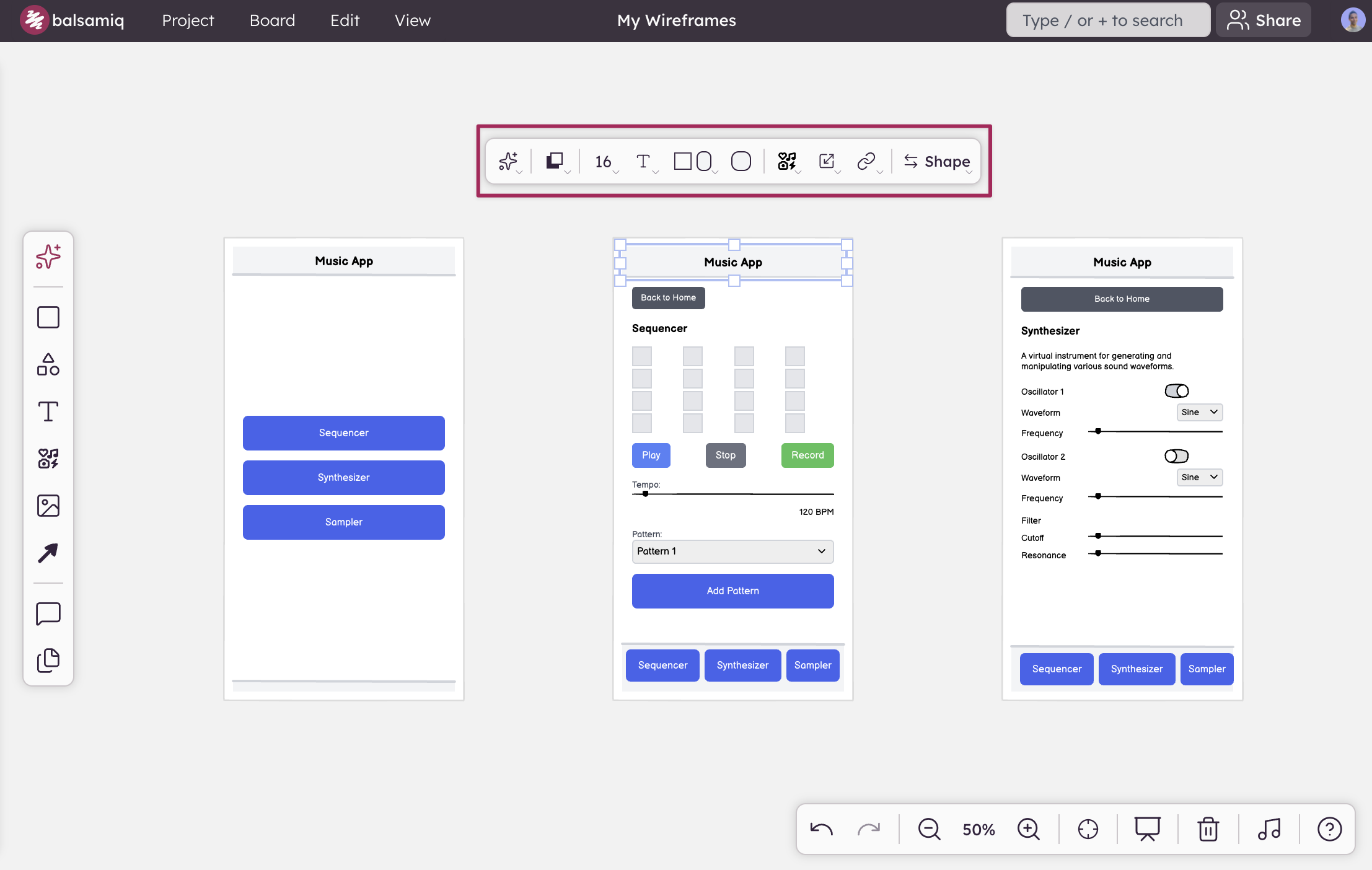
If you have multiple UI elements selected, it will display properties that are common to all the selected UI elements, as well as options for aligning and distributing the selection.
Common selection toolbar controls
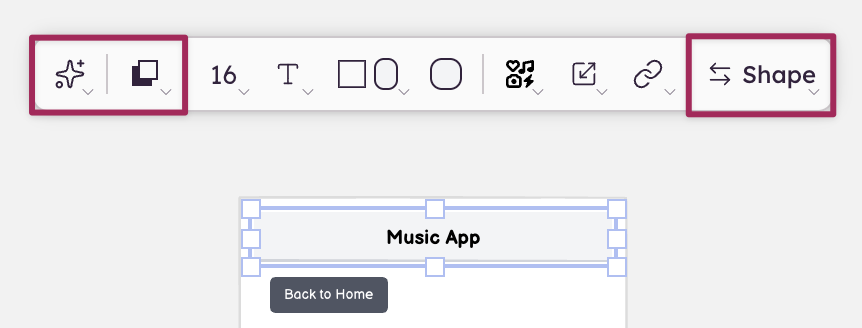
These controls appear for any selected element:
- AI: Edit the selected UI element with AI.
- Layering: Bring forward, send backward, bring to front, send to back.
- Element name + Transform: Shows the element type (e.g., "Button", "Rectangle"). Click to convert the element to a different one.
Note: Press P to quickly access the position & size fields in the bottom-right bar.
Specific selection toolbar controls
These appear only when relevant to the selected UI element.
Text & typography
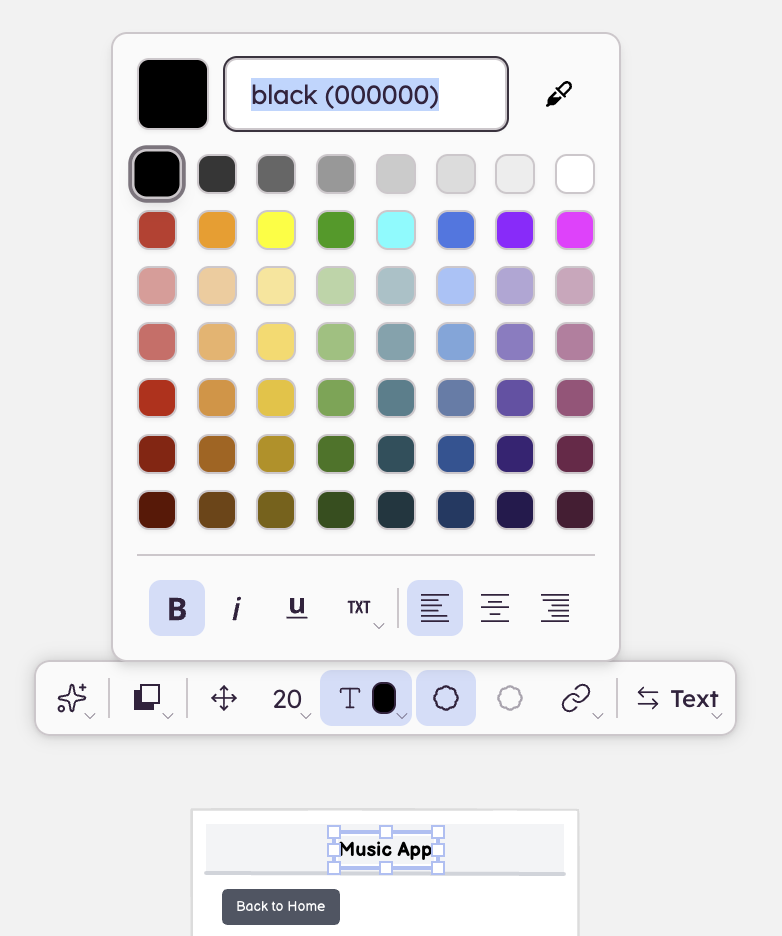
- Font size, bold, italic, underline
- Text color
- Text alignment (left, center, right)
- Text orientation (horizontal, vertical, slanted)
Note: Text controls in the toolbar apply to the entire element and override any per-character formatting applied during inline text editing. Inline formatting (such as making a single word bold) will be lost if you change a text property from the toolbar.
Color & style
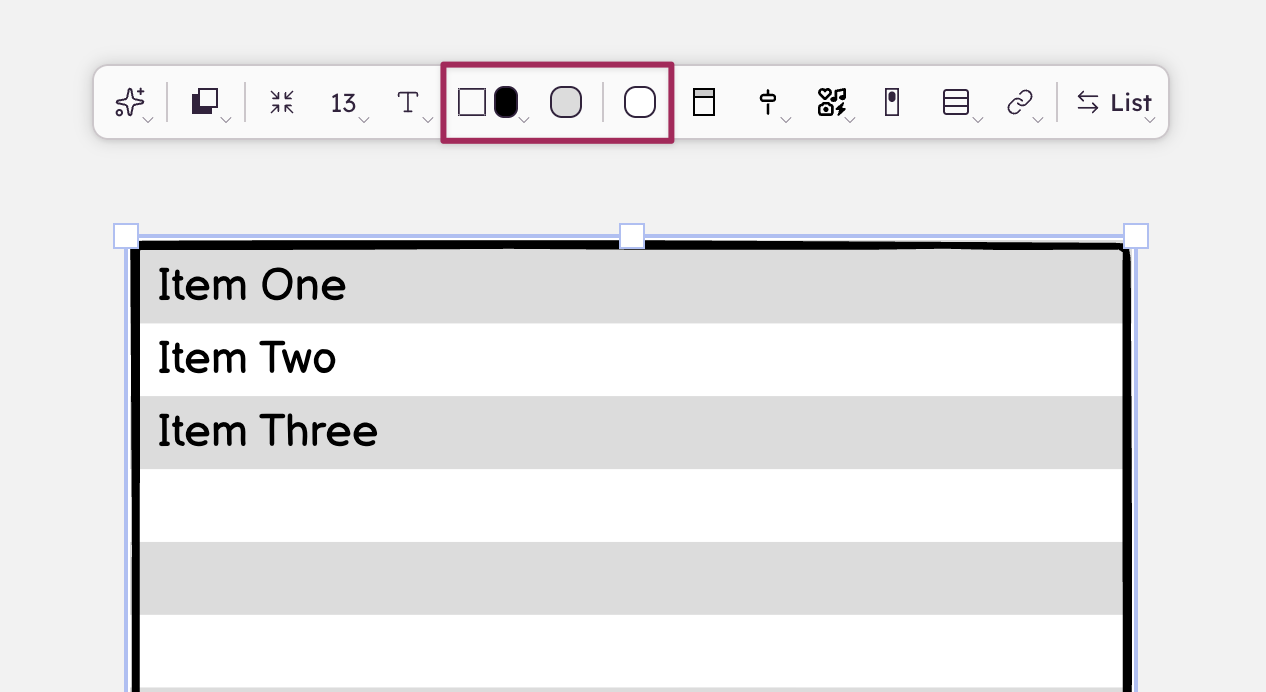
- Fill color
- Border style and color
- Stroke style (line elements)
- Background color / row color (lists)
Linking
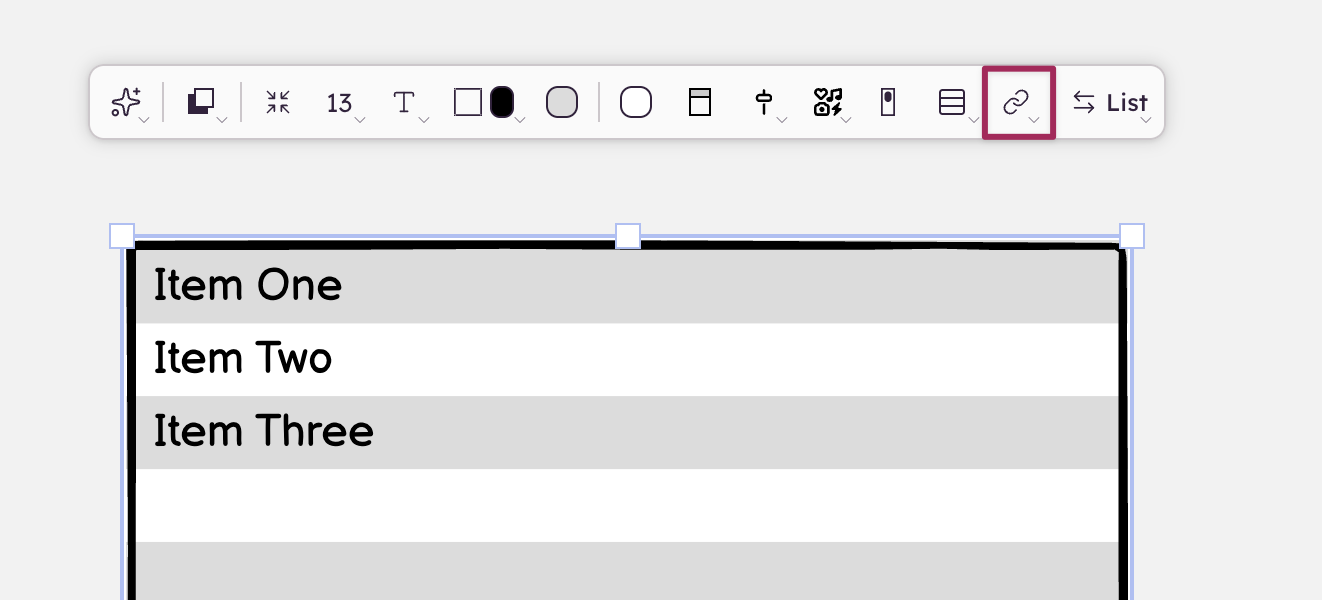
A chain-link icon appears in the toolbar for any element that supports linking.
- Single link: clicking the icon opens a dropdown where you can choose a destination board, enter a web address, or remove the link.
- UI elements with multiple sub-items (Link bar, AppBar): clicking the icon opens a popover with one row per sub-item. Each row has its own destination dropdown.
Multi-select behavior
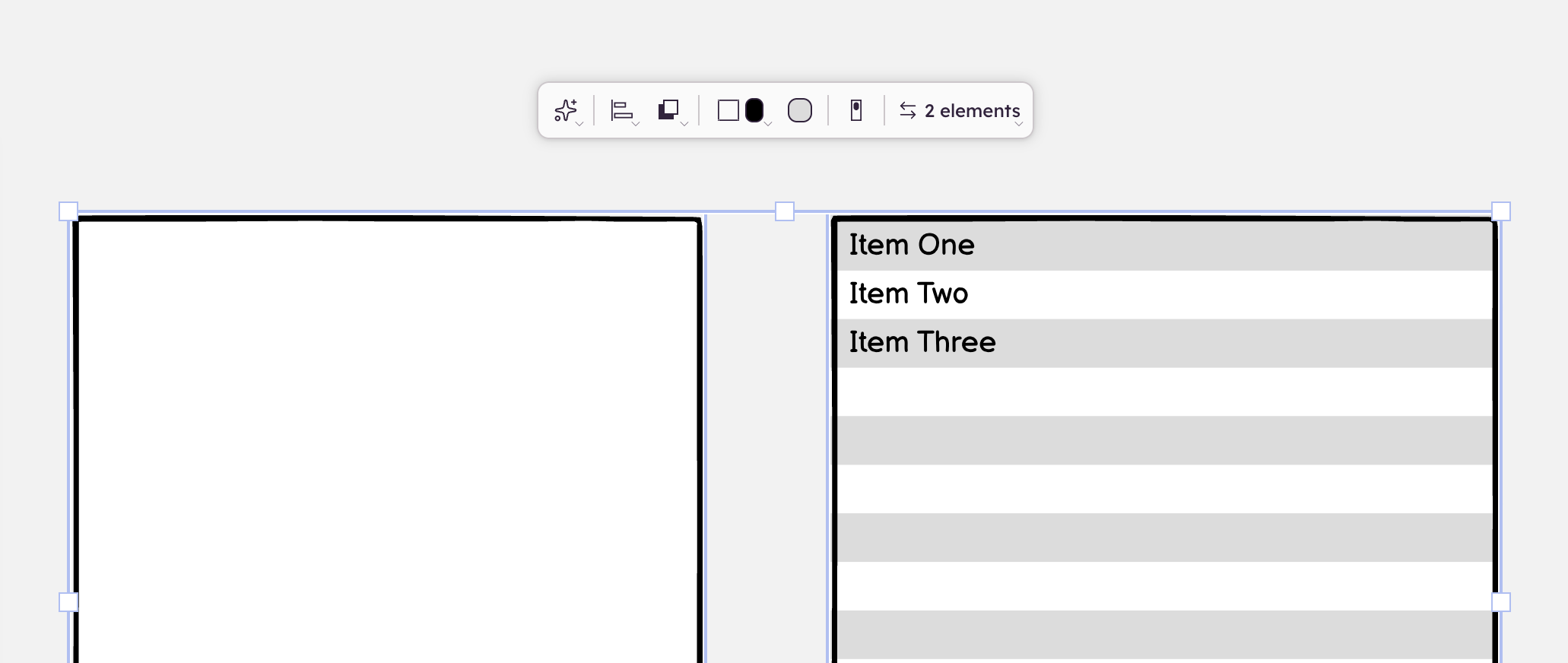
When two or more elements are selected:
- The toolbar shows only properties that exist on all selected elements
- Alignment controls appear (align left, center, right, and other axes) — these only show up for multi-select
- Changes apply to all selected elements at once
Components
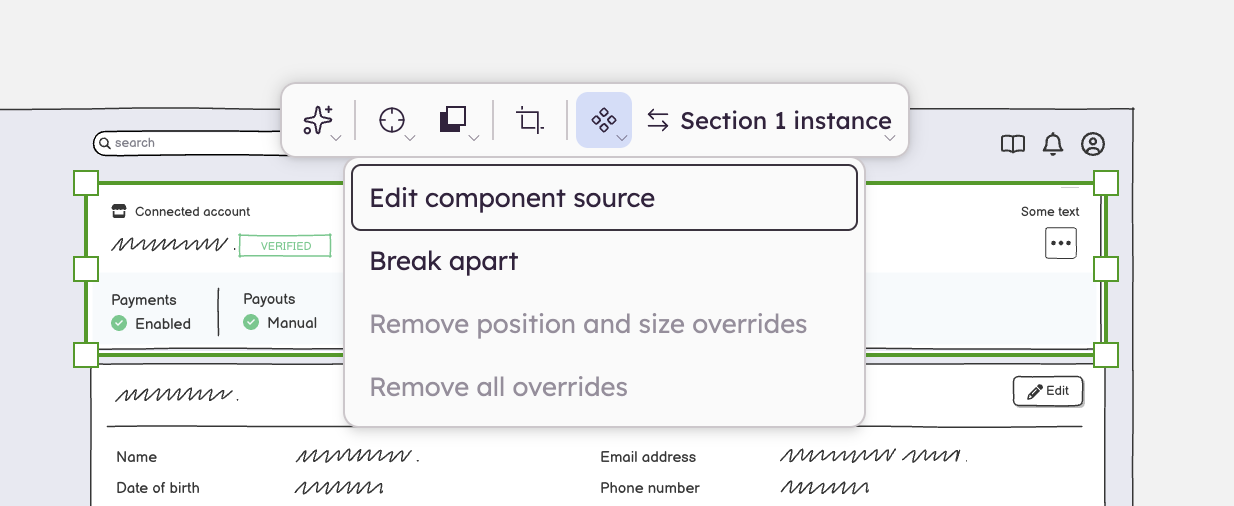
When a component instance is selected, the toolbar shows the component's name and a component menu with:
- Break apart from source: detaches the instance from the component
- Remove position and size overrides and Remove all overrides: go back to the component's values
- Edit source component: opens the component source for editing
- Rename source component… and Delete source component
When you override a property on a component instance (such as changing the text or color), the component button turns green to indicate overrides are active. Use "Remove all overrides" in the component menu to go back to the component's values, or "Remove position and size overrides" to undo only a move or resize. To undo a single change, select the element you changed inside the instance: a green component button appears next to it, with a "Remove [property] override" item for each property you changed (for example "Remove text override").