Managing your Balsamiq Cloud subscription
On this page
This page will describe how the space owner (or billing admin if the space has one designated) can sign up for and make changes to a Balsamiq Cloud subscription.
Signing up for a subscription
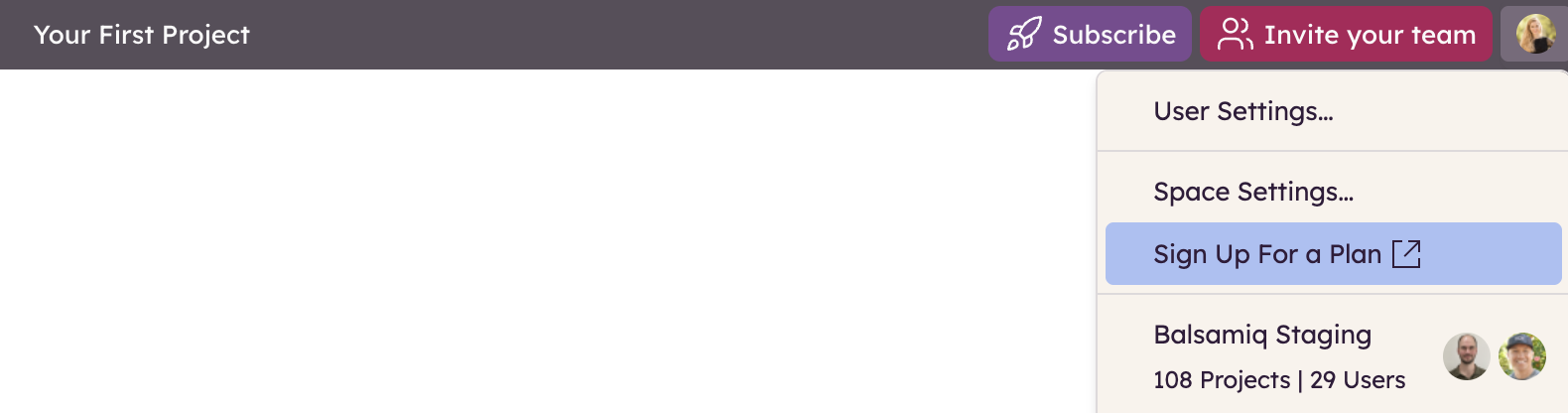
Signing up for a subscription starts on the Billing page. This page is accessed by clicking the "Subscribe" button at the top of the screen, or by opening the avatar menu in the upper-right corner and selecting "Sign Up For a Plan".
This will bring you to the paid plan selection screen, which describes each plan's feature in detail.
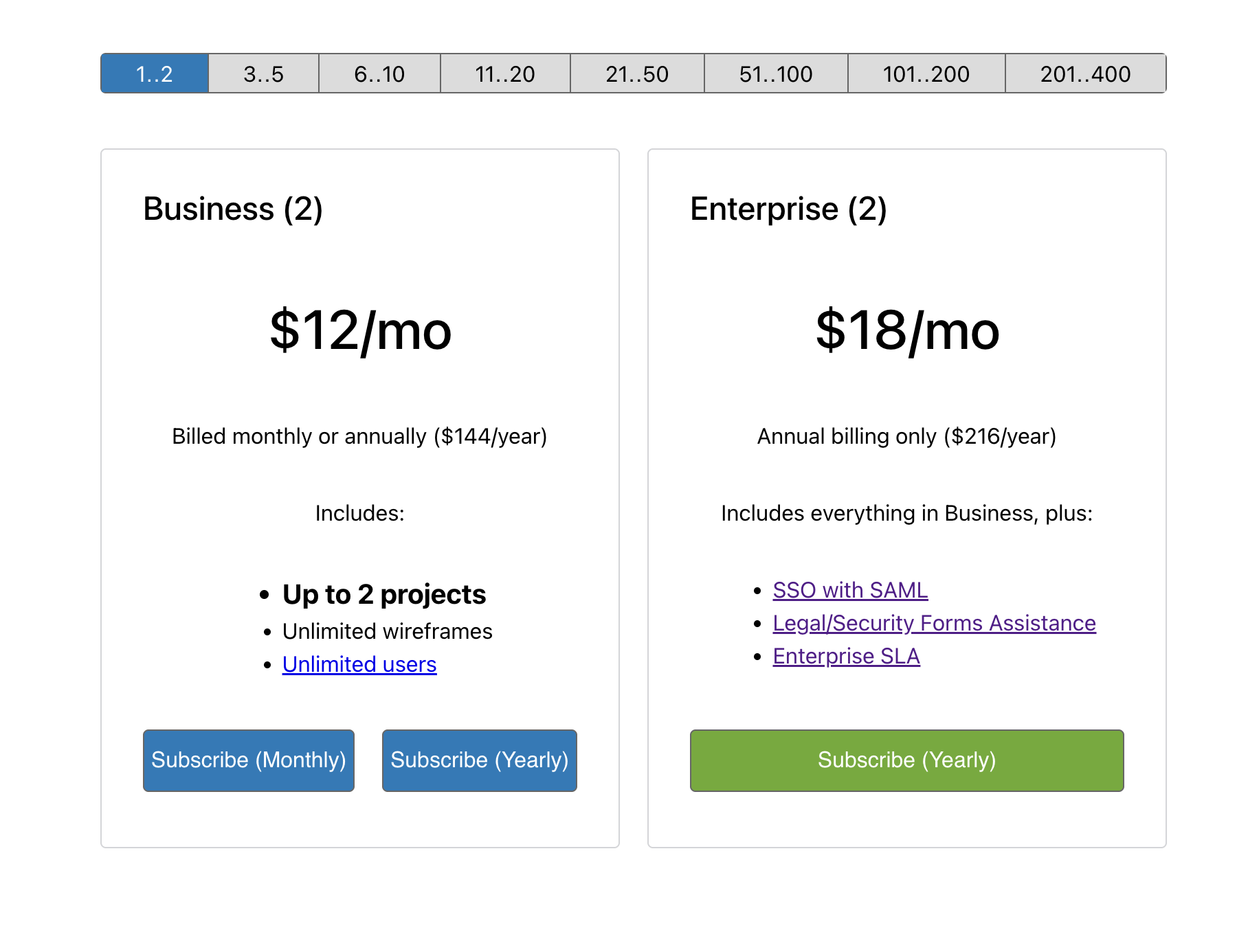
You can choose to be charged either monthly or yearly, then proceed to enter your credit card information in the secure sign-up form through Stripe. Invoices will be sent via email to the space owner (unless a billing admin has been designated). Review your information and click "Subscribe" to complete the process.
As usual, you are free to cancel your subscription at any time.
Accessing the billing page
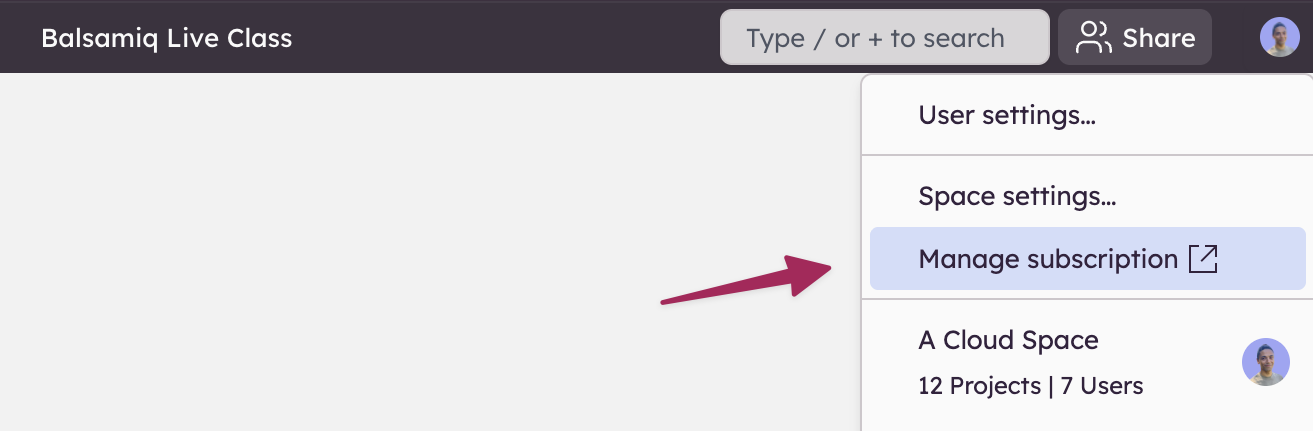
The billing page is accessed by selecting the Avatar in the top right corner of the space, and then clicking on“Manage Subscription" (or "Sign Up For a Plan," if the space is not yet subscribed to a paid plan).
Note: If the space has a designated billing admin, they may need to log in before accessing the billing page, otherwise access is granted by the link that was emailed to them.
Changing your plan
A space's subscription can be changed at any time in the Billing page.
Scroll down to the Change plan section of the billing page and select a new plan there.
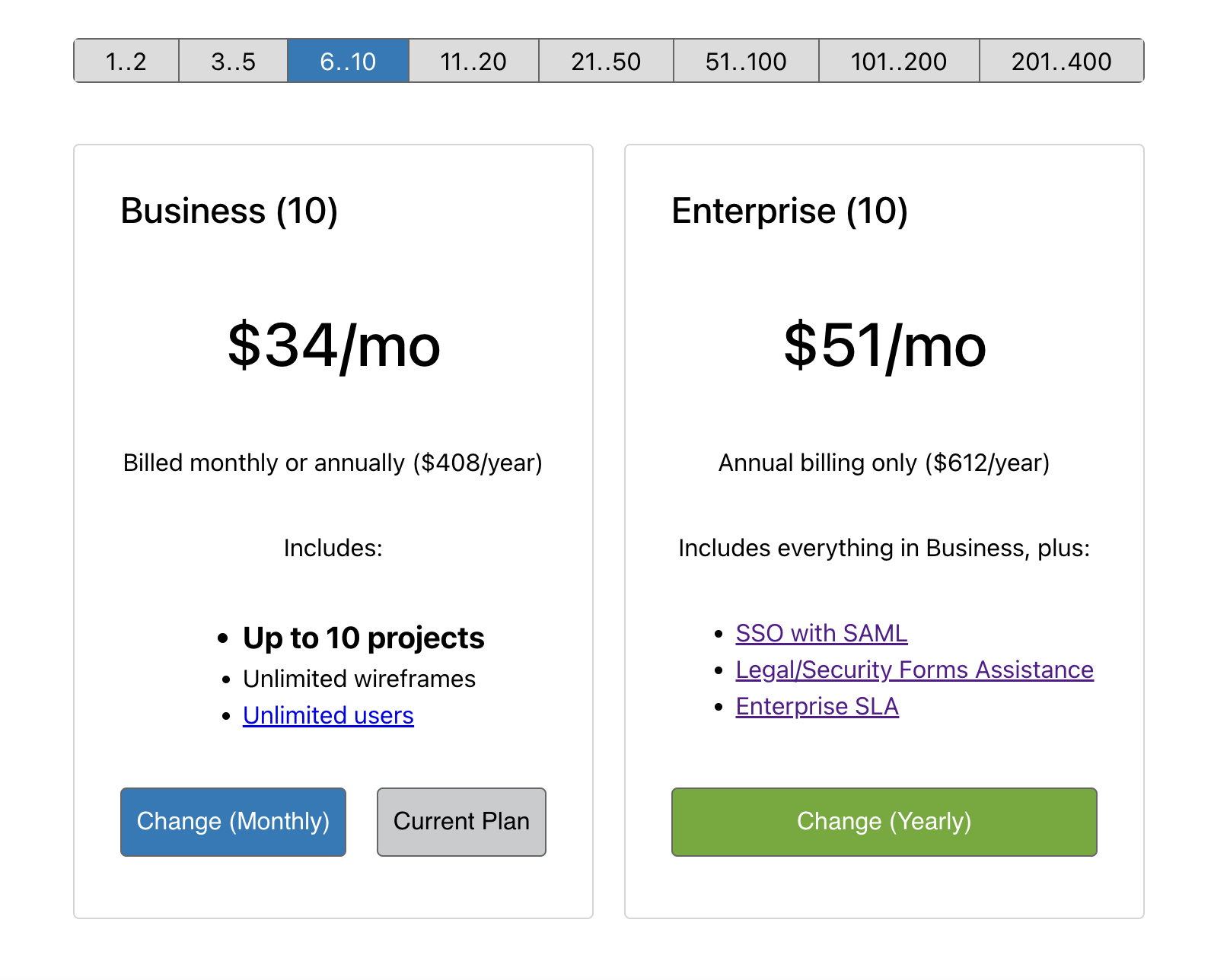
When changing plans, you’ll automatically receive credit for any time remaining on the old plan. If additional payment is due, your credit card will be charged. Any unused credit will be applied toward future renewals.
Your billing renewal date will remain the same if you are only changing the number of projects on your plan. We will adjust the charge for the current renewal period. Changes between monthly or annual payments will move the billing renewal date to the date the plan was changed, and your new subscription plan will start immediately.
Note: If you're on a legacy per-project plan, like Business 20, you can move to a current per-editor plan at any time. New plans offer more flexibility as your team grows.
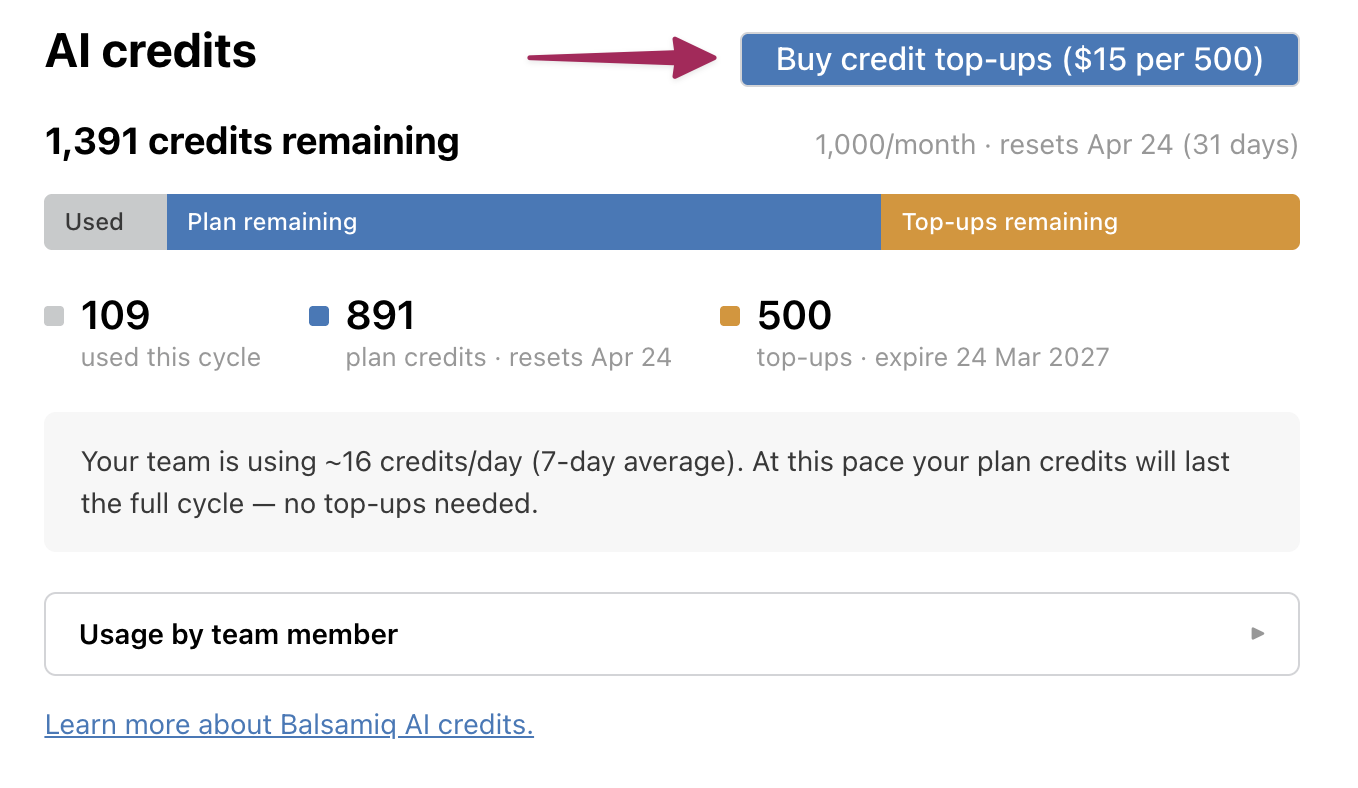
Adding AI credit top-ups
Credit top-ups let you buy additional credits without changing your subscription. If your Space runs out of credits before your monthly balance reset, you can buy top-up packs on demand.
Credit top-ups are sold in packs of 500 credits for $15 each and you can purchase multiple packs at once.
Finding past invoices
We send invoice notifications via email following your automatic credit card payment to the space owner (or billing admin's) email address.
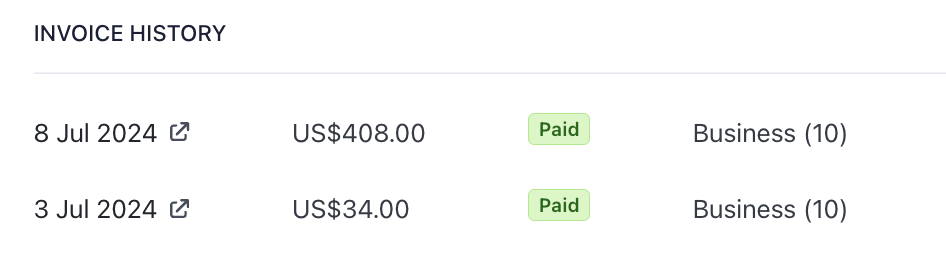
A link to your downloadable invoice is included in this notification email. The Billing Admin can also find all past invoices by accessing the Billing page. Then they can click the “Manage subscription ” button to access the Invoice History.
Updating your credit card or invoice information
The space owner (or designated billing admin) can update the credit card or invoice information by accessing the Billing page and then clicking "Manage subscription."
You can then add a new credit card by clicking on "+ Add payment method" and entering the card number and other information. You can then either delete the old card by clicking on the "..." next to it and selecting "Delete", or by clicking on the "..." next to the new card and selecting "Make default".
Note: Alert text.
We send invoices to the either the space owner or the designated billing admin's email address. If you need to update that address, you can do so in User Settings.
Stopping your subscription
To cancel the subscription, the Billing Admin should access the Billing page and then click “Manage subscription”.
On the next page, click on "Cancel Subscription".
After canceling your subscription, your credit card will not be charged again, unless you restart your subscription and enter your credit card information again. Upon the conclusion of the current billing period, you will only be able to view your projects, but you will not be able to edit them or create new ones.
Please review the details of your options before canceling your subscription to make sure your team downloads any work they would like to keep.
Restarting your subscription
After your subscription ends, due to your trial ending, credit card renewal trouble, or because the time remaining on your canceled plan ended, your space will be suspended for 30 days. During this time, your space will be in read-only mode, which means the projects will still be viewable to users, but they will not be editable.
While the space is in read-only mode, the space owner(s) will still be able to download projects,and also can permanently delete the space, or restart the subscription.
To restart your subscription, the space owner or billing admin should access the Billing page and click the "Renew Subscription" button. This will take them to the billing portal, where they can renew the plan by clicking on "Renew plan". Depending on when you canceled your subscription, you may be charged immediately.
If you choose not to restart the subscription, your space data will be deleted after 30 days.