Managing people and permissions
On this page
Space permissions
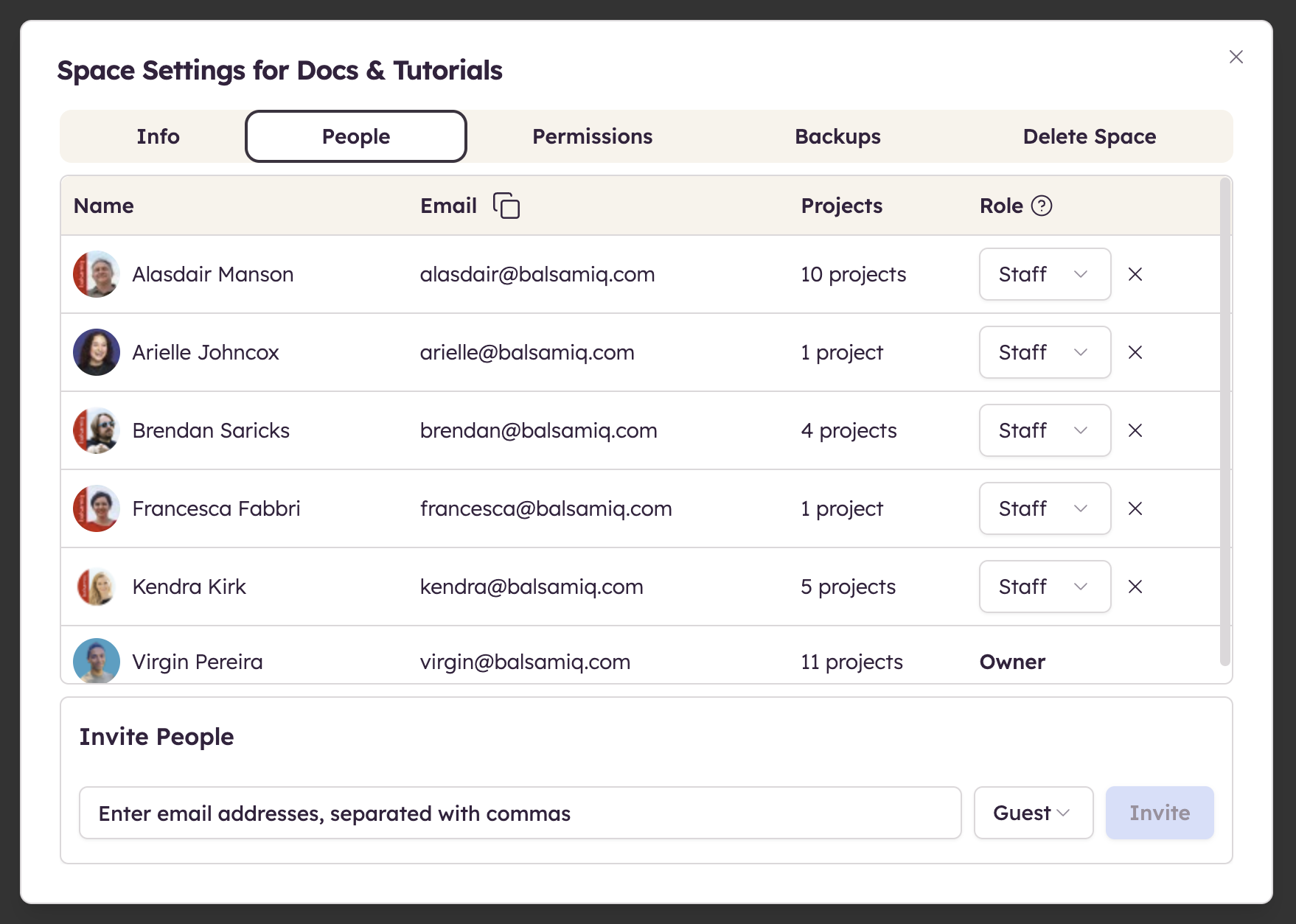
Balsamiq Cloud has six user permission roles:
- Space owners
- Staff editors
- Staff reviewers (free)
- Guest editors
- Guest reviewers (free)
- Billing Admins (free)
Note: If you're on a legacy per-project plan, like Business 20, your plan includes all editors. Not sure which plan you're on? Check your billing page.
Space owners
Space Owners are the admins for the entire Balsamiq Cloud Space. They can:
- Access any project on the Space
- Create new projects
- Add/remove editor seats
- Add Staff and Guest Members to any project on the Space
- Manage all the Space Settings
- Select a Billing Admin other than themselves (Teams and Enterprise plans)
The default Space Owner is the Space's creator, but you can add a second Space owner, which can be great for sharing the administrative load.
Note: You can transfer the Space ownership to someone else by removing yourself from the "Owner" role once you have designated a second Space Owner.
Staff editors
Staff editors are project administrators for any project they have access to. They consume a paid editor seat. They can:
- Create new projects
- Own projects
- Add editors/reviewers to projects they own
- Request to invite new editors to projects they own
- Access the list of all users on the Space
Staff reviewers
Staff reviewers are free. They can:
- View and comment on any Staff project they have access to
- Request an editor seat by clicking Request edit permission in the editor’s top bar
- Access the list of all users on the Space
The Staff reviewer role is especially useful for Spaces that have SAML enabled (available for Enterprise users), where everyone who logs in via the company identity provider is automatically added as a Staff member.
Guest editors
Guest editors consume a paid editor seat. They can only access and edit projects they're explicitly invited to. They cannot see information about the Space or invite others.
Guest reviewers
Guest reviewers are free. They can:
- View and comment on projects they’re invited to
- Request an editor seat by clicking Request edit permission in the editor’s top bar
Billing Admins
Note: This role is only available on our Teams and Enterprise plans (and on legacy per-project plans).
Billing Admins can manage the billing section of a Space. They can:
- Subscribe to a plan
- Change plans and billing info
- Purchase AI Credit top-ups
- Cancel a subscription
Billing Admins ONLY have access to the Billing Settings of the Space. They will not be able to participate in projects, or even access them at all (unless they're also a member of the Space).
This is useful if you want a reseller - or someone from your purchasing team - to be able to manage your Space's billing without actively participating.
Making someone a Billing Admin
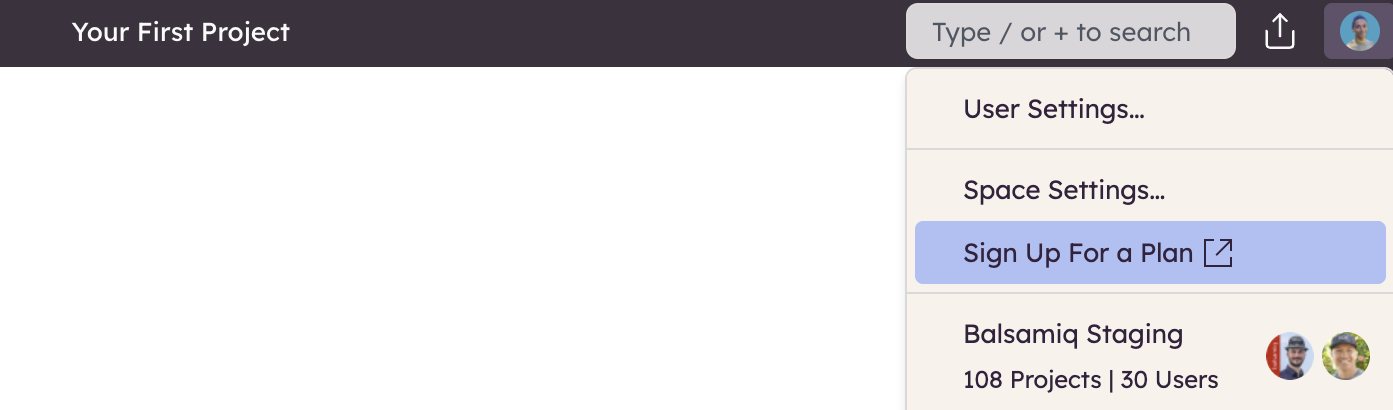
Space Owners can select a Billing Admin by clicking on the Subscribe button, or Sign Up For a Plan (or Manage Subscription if you already signed up for a plan) from the Avatar Menu in the upper-right corner.
Under the Billing Administrator section, select one of the three options: myself, a member of this Space, or an external email address.
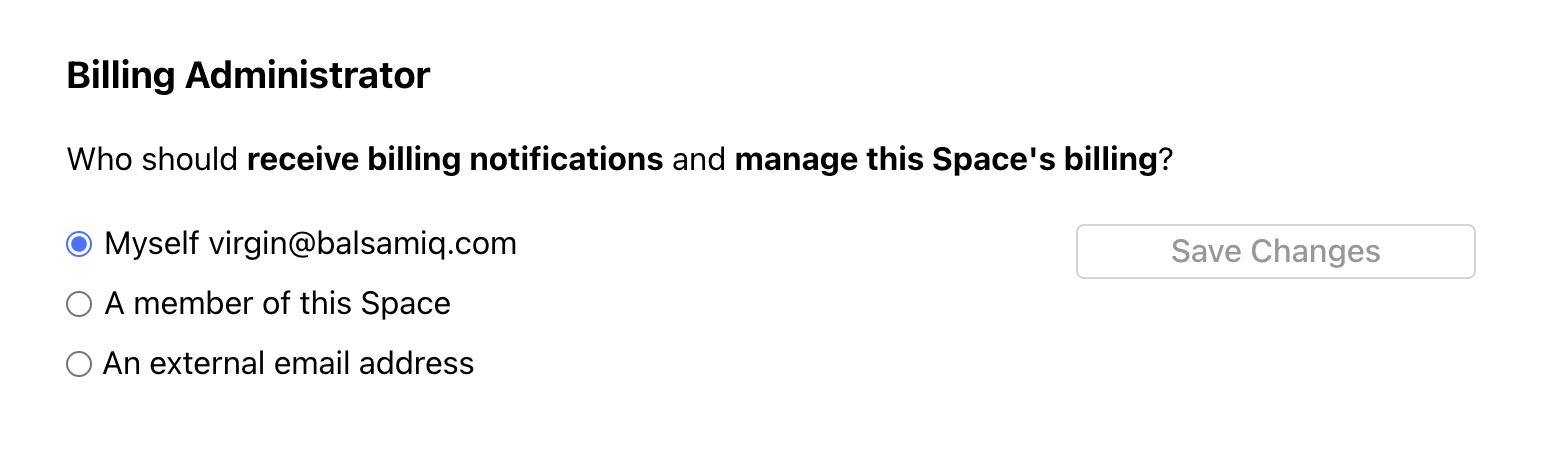
For a member of this Space, select the desired Space member from the drop-down list.
For an external email address, enter the email address of the person you’d like to invite, and then click "Save changes" and “Email them a link to this billing page” to share the public link to the billing page.
Project permissions
Managing user permissions on projects
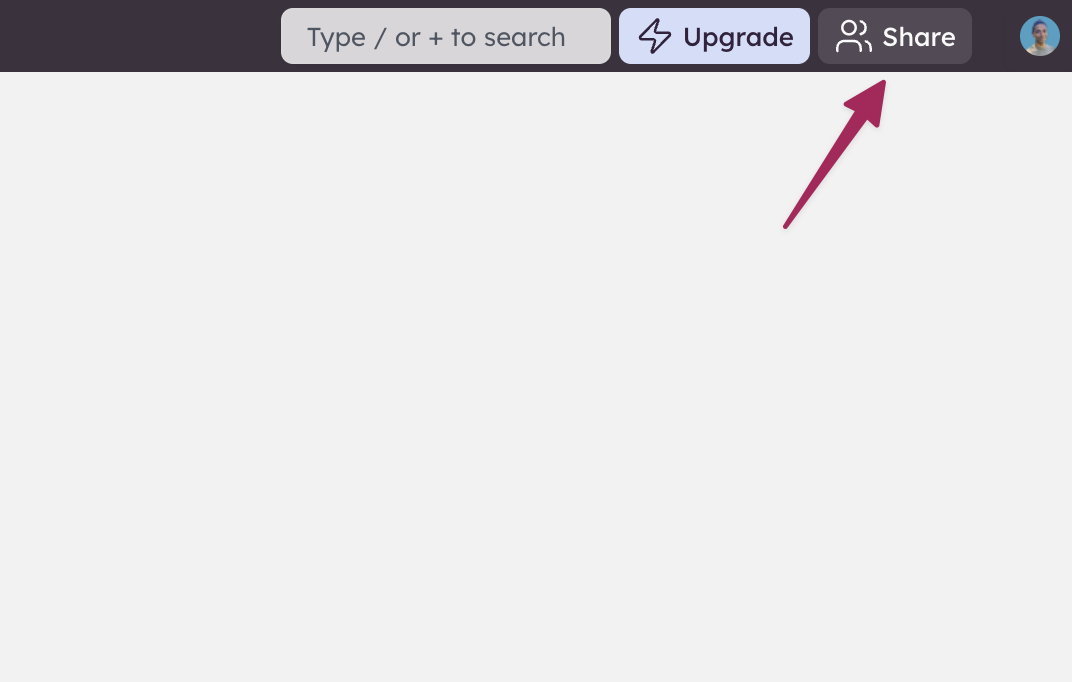
Managing users on a specific project is something a Space owner or Staff editor (as long as they own the project) can do from the Share button in the upper-right corner.
Note: When you use Cloud for the first time, the button label is Invite your team.
The Sharing Settings panel will appear and display a list of users and their permissions on that particular project. Project Owners and Staff editors can edit user permissions from the Role dropdown menu next to a user's information.
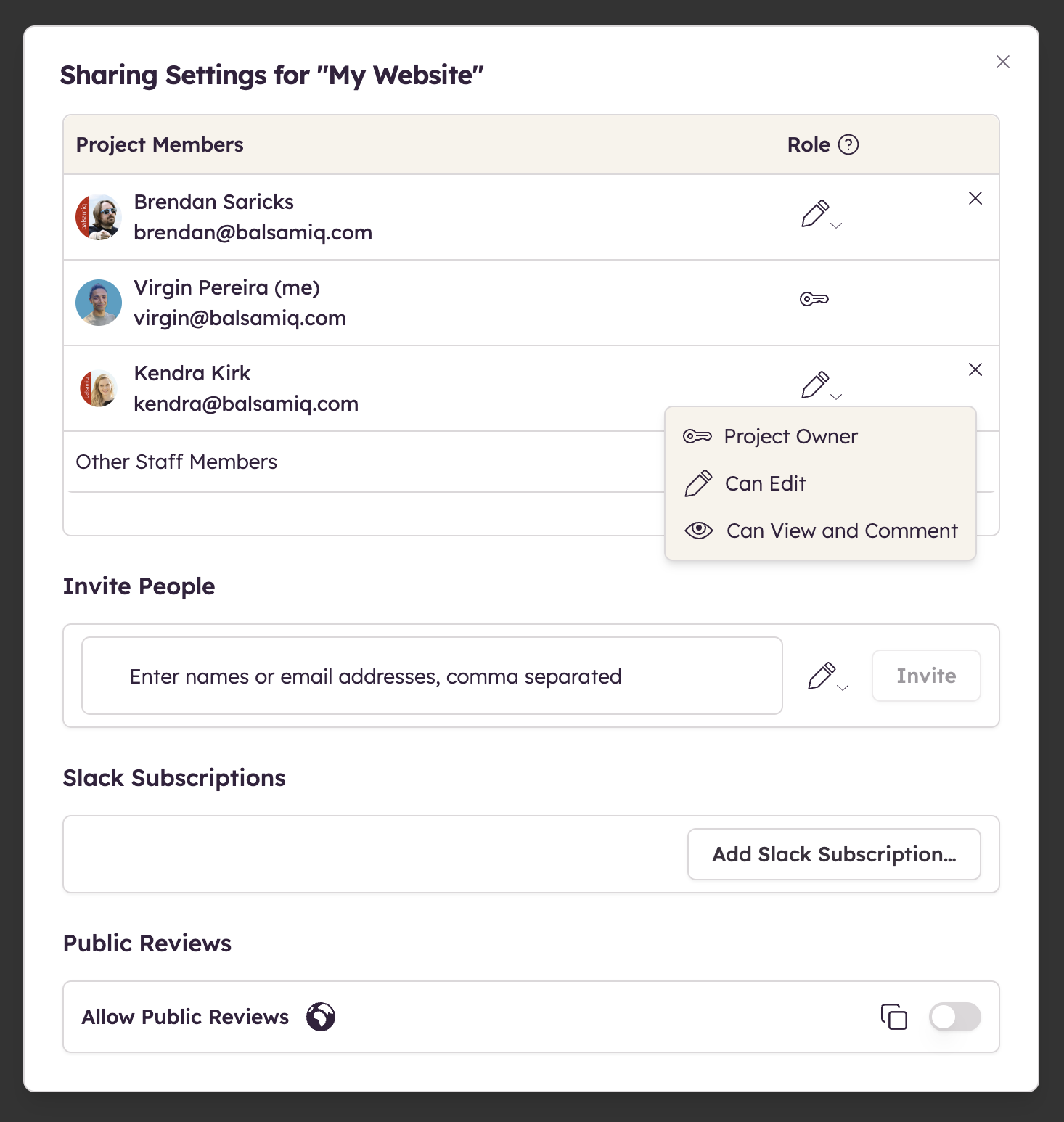
Inviting someone to a project
To invite an editor, Space owners and Staff editors can use the Add editors button and select them from the pre-populated list. Space owners can add new editors or add editor seats from the Space settings.
Use the Invite reviewers button to add reviewers. Reviewers don't consume a paid seat.
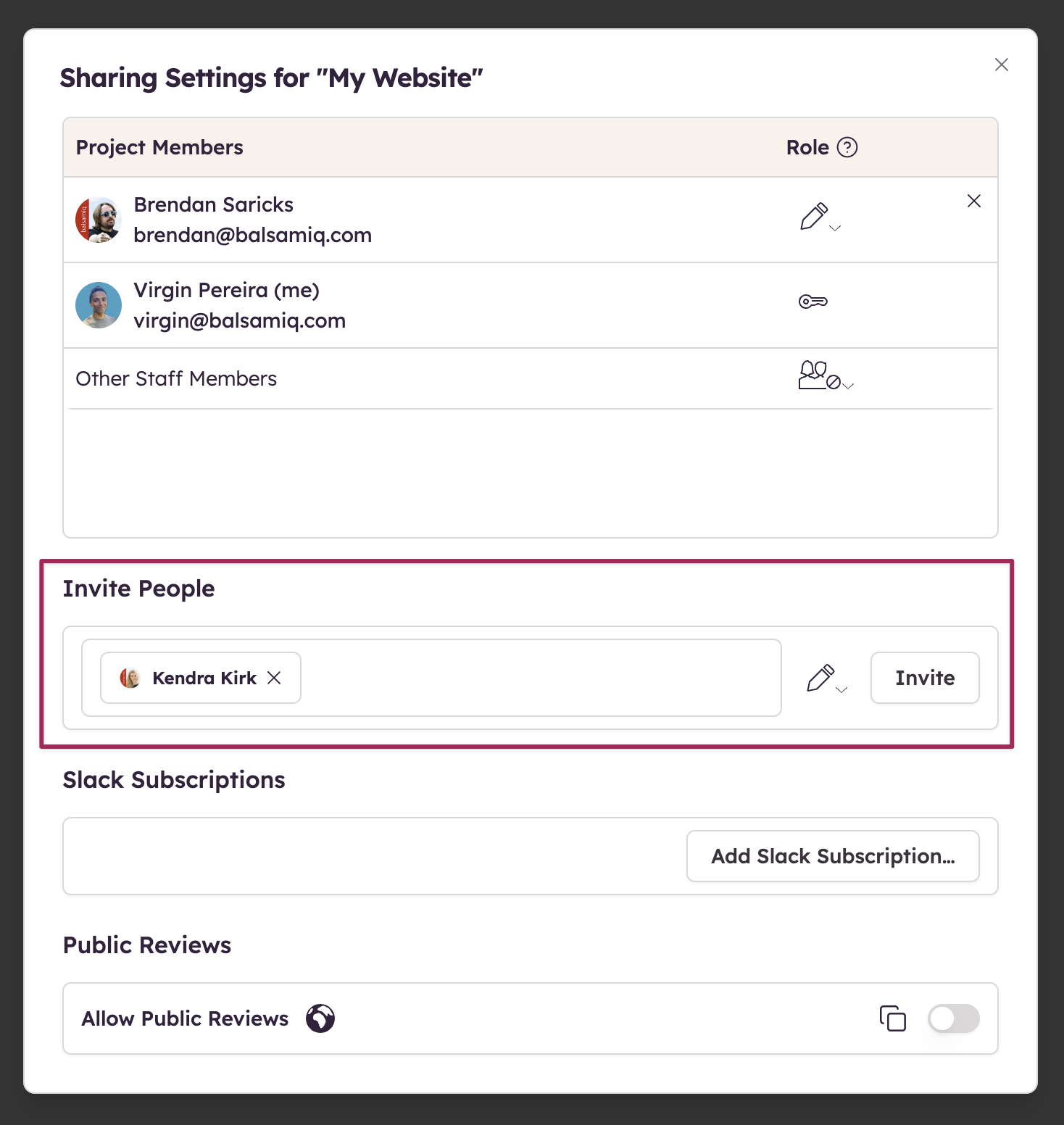
Note: An invitation link is valid for 7 days. After that, it will expire and the invitation will be unlisted from the pending ones.
Removing someone from a project
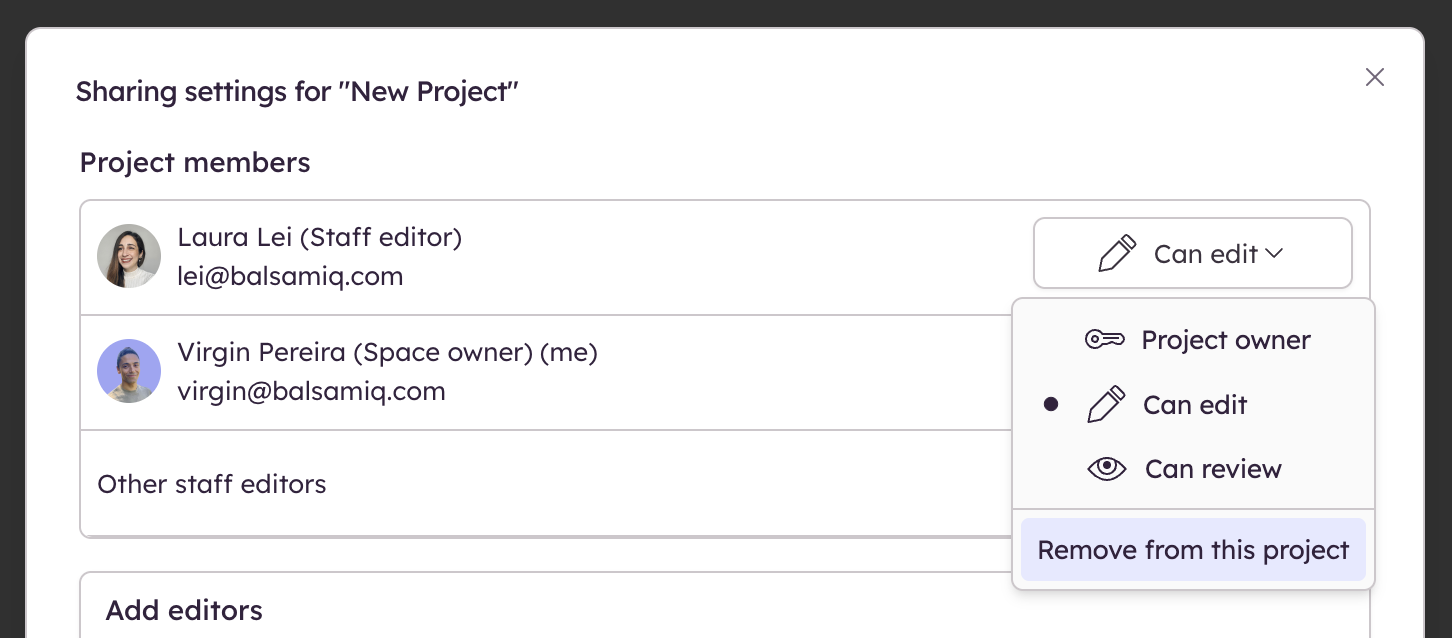
To remove a user from a project, use the dedicated option from the dropdown menu next to their name.
Allowing public reviews
Clicking this checkbox will allow anyone to view and comment on the project, including anonymous users that you have shared the project link with. Anonymous users cannot edit the project.
Note: This setting is only available to the Project Owner and Space Owner.